

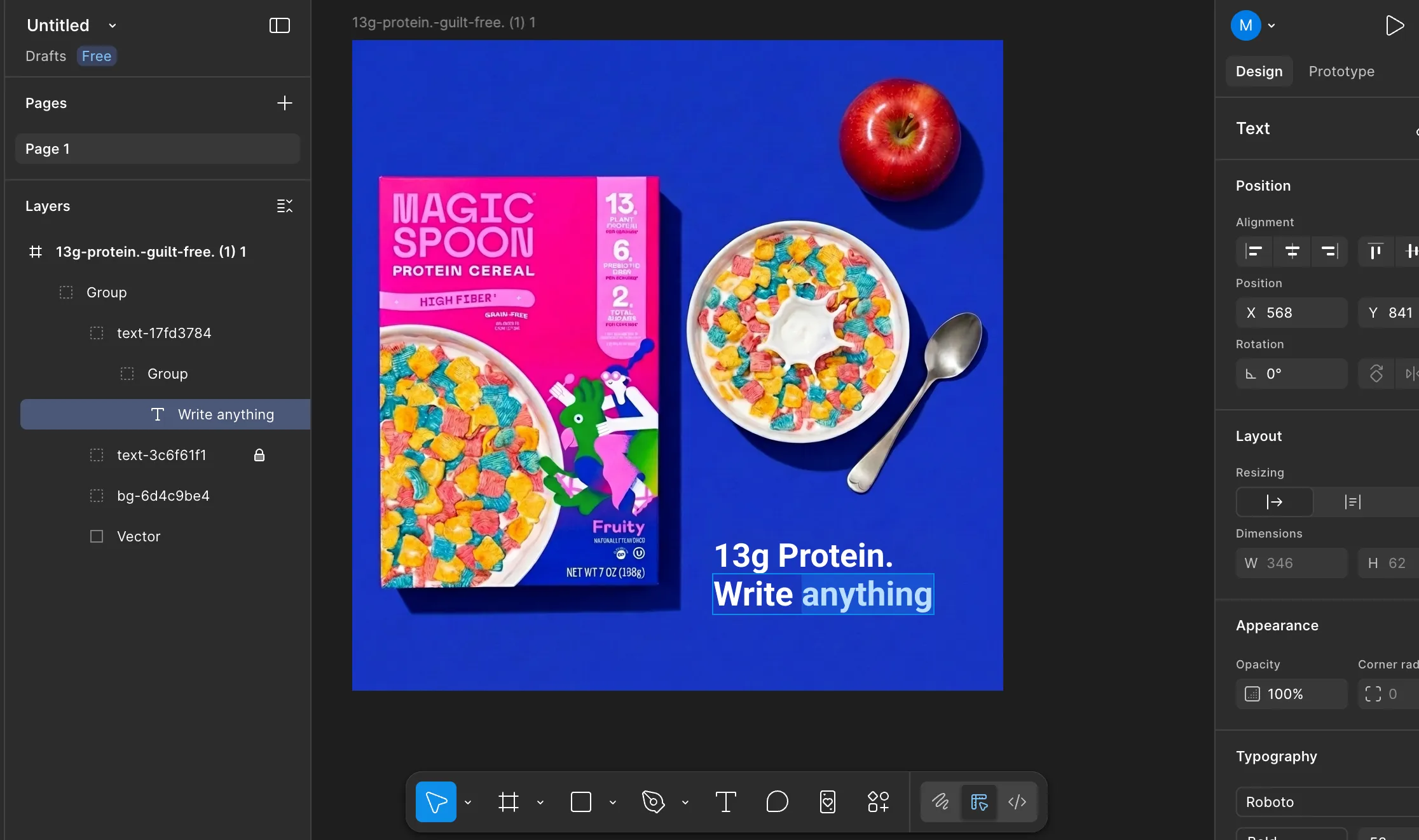
AI image models like Nano Banana Pro or GPT Image make beautiful visuals and infographics for your Amazon listing images, but they’re not editable.
Until now.
In Pixii, you can convert to layers and edit in Pixii’s drag and drop editor. You can also export to Figma.
Here is the exact workflow.
Open your design in Pixii. Make your tweaks.
For example, I used the spot edit tool to add an apple. Pixii even nailed the shadow.
Once the design looks right, hit “Convert to layers.”
Pixii generates a new page with your layered design file.
Here is the trick our internal design team uses.
Move that layered file up until it sits at the very top as your first page.
Hit save. Download it as an SVG.
Jump over to Figma. Drag and drop that SVG directly onto your canvas.
Look at your layers panel. You aren’t looking at a flat image.
You now have full control.
- Write anything
- Move anything
- Do anything
Just like that. Have fun.
Design your next listing with Pixii Pixii turns any image into editable layers — your brand fonts, your layout, full control. See real Amazon listings designed in Pixii, explore the Amazon main image generator, or generate visuals at scale via the API. Start designing now → pixii.ai