Amazon internal data. Premium figure is for well-implemented content. Results are not guaranteed. Source: Amazon
Amazon A+ Content gives your product more room to sell. Use it to answer the questions your gallery leaves open, with a design that works on desktop and mobile.
TLDR
- Use Premium when you have access. You get wider images, more module slots, and artwork tailored for mobile.
- As of October 2026, Amazon says Premium is available to all brand owners at no additional cost. Your account still needs the correct selling plan and brand permissions.
- Give every section a job. State the promise, explain the benefits, show the product in use, and answer the doubts that stop a purchase.
- Pixii handles the sizing. It designs the full image and cuts it into individual files ready for Amazon’s upload fields.
What is A+ Content?
A+ Content is the enhanced product-description section on an Amazon listing. It adds images, text, comparisons, and, with Premium, video and interactive elements beyond the main product gallery.
Jeff Bezos built the mall. Amazon gives your product a storefront inside it. Use every inch that helps a shopper understand why they should buy.
A main photo and product details get you listed. Your gallery shows people what they are buying. A+ gives you room to finish the argument.
- 01Get listed
Main photo + product details
- 02Show the product
A complete image gallery
- 03Answer more questions
Basic A+ Content
- 04Use the full canvas
Premium A+ + mobile artwork
This is a progression in how much you show the shopper. You don’t have to build Basic first if Premium is already available to your account.
Give the shopper a reason to stop comparing
Treat a shopper who reaches your A+ section as someone with a question you haven’t answered, or trust you haven’t earned. That’s a useful design rule from our Orange Klik demonstration.
Before you design, write down the questions that stand between your product and the cart:
- Will it work for me? Explain fit, compatibility, ingredients, or skin type.
- How will I use it? Show the routine, installation, serving, or size.
- Why this one? Make the practical difference visible.
- Why should I believe you? Provide relevant evidence and certifications you can substantiate.
Read your reviews for the words buyers actually use. A protein shake customer asking about lactose needs a clear answer. Another beauty shot of the bottle won’t provide it.
Basic, Premium and mobile, side by side
Basic A+ uses narrower modules. Its image artwork serves both desktop and mobile, so small text inside a wide image becomes harder to read on a phone.
Premium A+ gives you wider desktop images and more layout options. Full-image modules can form a continuous visual story without the white gaps seen between Basic modules.
Premium mobile is the phone version of that Premium artwork. You can enlarge the type, rearrange the product, and shorten the copy. It belongs to Premium, rather than being a third tier.
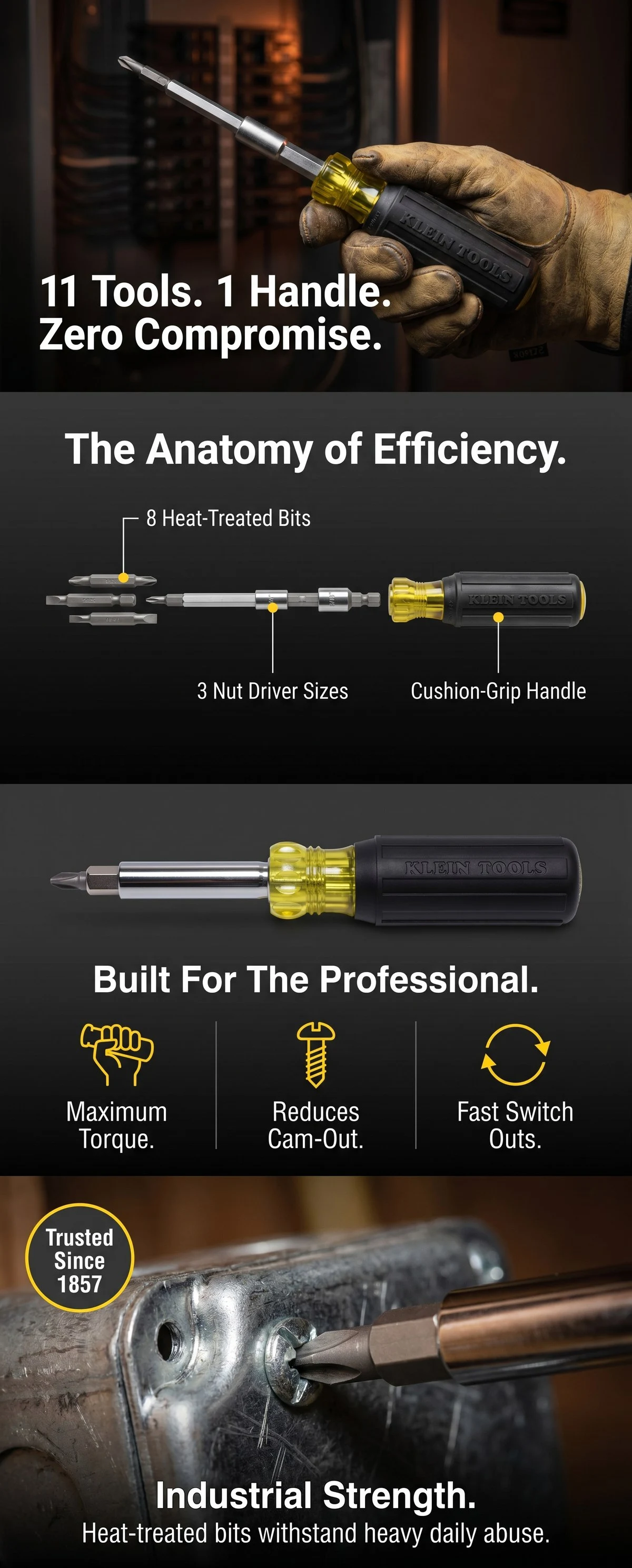
Klein Tools · Pixii design example
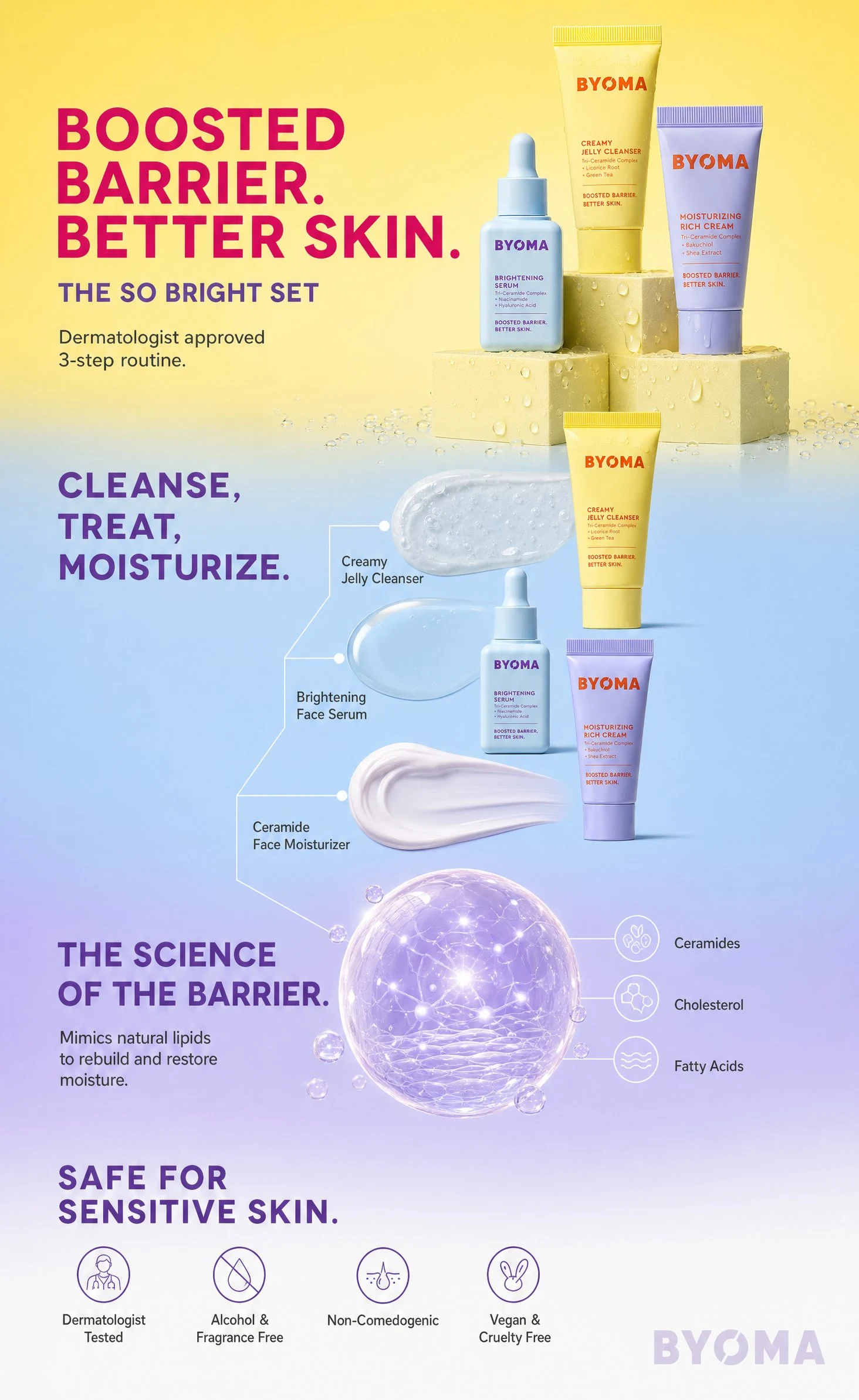
Byoma · Pixii design example
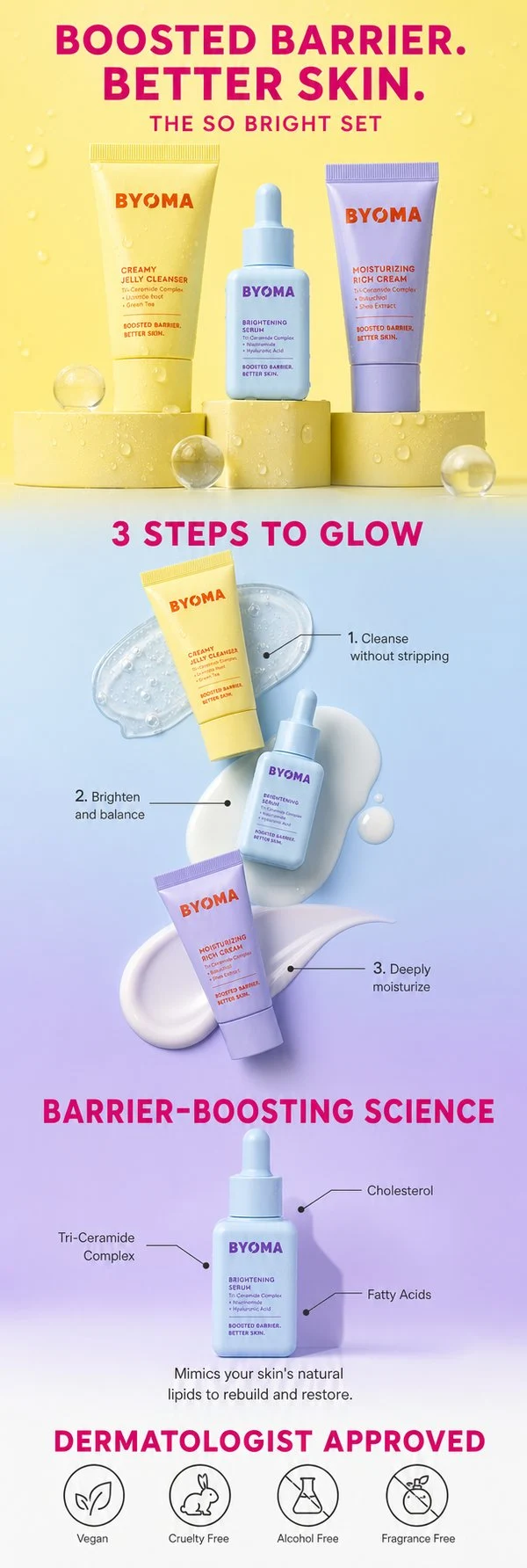
Byoma · Pixii design example
Tap an image to inspect it. These are Pixii design examples, not performance case studies. Basic uses a different brand; the Premium pair shows the same brand on both screens.
The Byoma pair shows why mobile deserves its own design. The desktop has room to spread out. The mobile version stacks the message into a narrower composition.
Browse the full A+ examples gallery →
Why choose Premium A+?
More width for the product and the promise
A Premium full-image asset is 1464 pixels wide. The Basic header-image asset is 970 pixels wide. That’s about 51% more source-image width for your composition.
Use that room for a larger product, a clearer demonstration, or a stronger headline. Filling it with extra copy defeats the purpose.
More room to tell the story
Amazon allows up to seven Premium modules, compared with five Basic modules. That’s two more sections for a demonstration, a comparison, or an unanswered question.
You don’t have to fill every slot. Add a module when it helps the buyer decide.
A layout made for a phone
Premium Full Image accepts separate desktop and mobile assets: 1464 × 600 and 600 × 450 pixels. This lets you recompose the design instead of squeezing every desktop element into a smaller screen.
More ways to explain the product
| What Amazon allows | Basic A+ | Premium A+ |
|---|---|---|
| Modules per project | Up to 5 | Up to 7 |
| Module types | 14 | 19 |
| Separate mobile artwork | No | Yes, in supported modules |
| Product comparison charts | Yes | Yes, with richer options |
| Video, hotspots and navigation carousels | No | Yes |
Pixii focuses on the image designs. Amazon’s Premium builder also gives you interactive modules to use alongside them. Brand Story and Shoppable Collections are additional brand-content formats, with their own layouts.
Who can use Premium A+ in 2026?
As of October 2026, Amazon says Premium A+ is available to all brand owners at no additional cost. Its July 2026 UK seller-forum announcement states this explicitly.
For a branded Seller Central account, start with:
- A Professional selling account.
- A brand enrolled in Amazon Brand Registry.
- The correct brand permissions assigned to your selling account.
Open Advertising → A+ Content Manager → Start creating A+ Content. Look for the Premium option for your brand and marketplace.
If it isn’t there, check your brand association and account role, then contact Seller Support. Some Amazon help pages still show older qualification checklists. Confirm access in your account before planning the upload.
The announcement applies to brand owners. It does not mean every seller, including an unregistered or generic-product seller, automatically gets Premium.
A+ Content best practices for 2026
We inspected the A+ image assets on Goli and MaryRuth’s Amazon listings on October 16, 2026. Both use consistent colors and distinct sections to answer buying questions.
The lessons below combine those live observations with Pixii design examples. They show how to structure the page; they are not claims about either brand’s conversion results.
1. Open with the reason to buy
Your first module should tell a shopper what the product does for them. Pair the promise with a product image that makes the benefit easy to understand.
Goli’s apple cider vinegar gummies open with the bottle, benefit copy, and dietary-fit icons on a bold red background. The shopper gets the product and its proposition together.
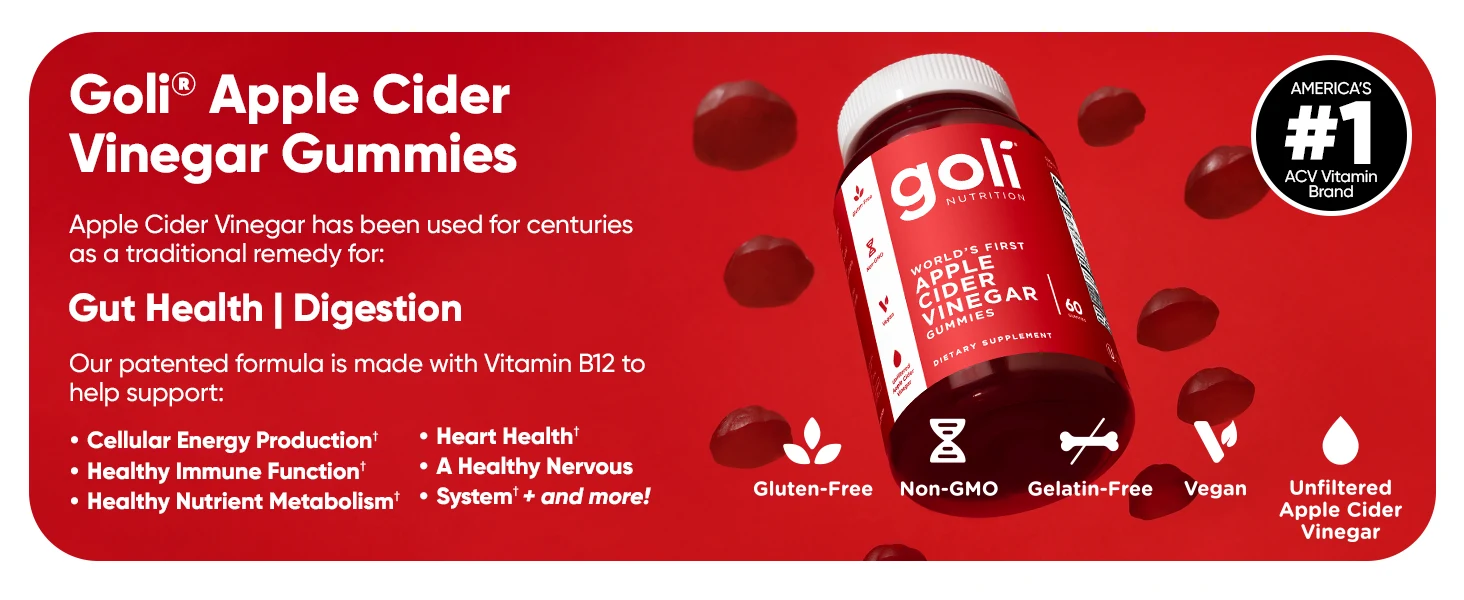
Observed on Goli’s Amazon listing, October 16, 2026. Brand-owned artwork shown for design analysis.
A lifestyle scene is another strong opening when it demonstrates the promise. In this Pixii Graza example, oil going into a hot pan explains the use before you read the headline.
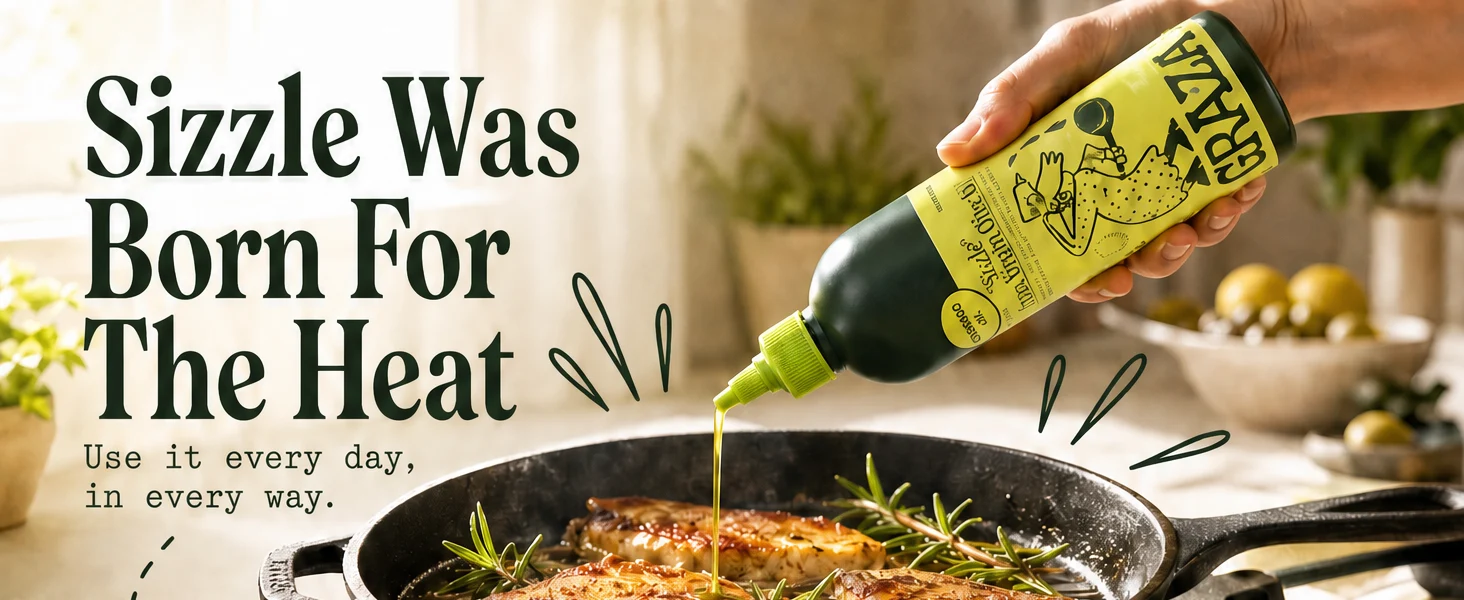
Pixii design example. The cooking scene and headline make the same promise.
2. Turn features into answers
“Premium ingredients” gives the shopper little to evaluate. Ingredient names, amounts, and serving details answer a real question.
Goli includes a Supplement Facts panel within its red visual system. The design changes the subject without making the page feel like a different brand.
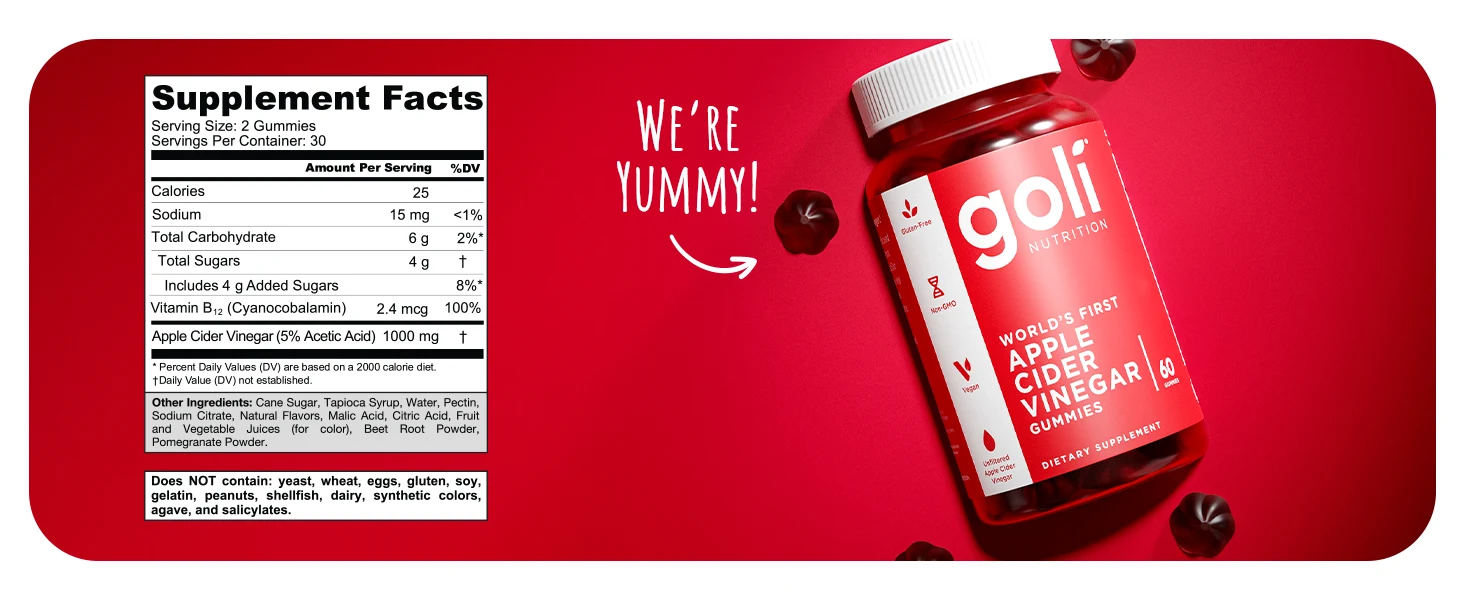
Observed Goli listing. Ingredients and serving information answer “What’s in it?”
For tools, show what the mechanism does. For electronics, explain compatibility. Choose the information a buyer needs to rule your product in or out.
3. Show the product earning its place
Demonstrate how the product fits into the buyer’s day. Show it being used, held, installed, or stored. Give scale and context when dimensions alone are hard to picture.
The Graza example closes with four cooking uses. Each image gives the oil another job in the kitchen.
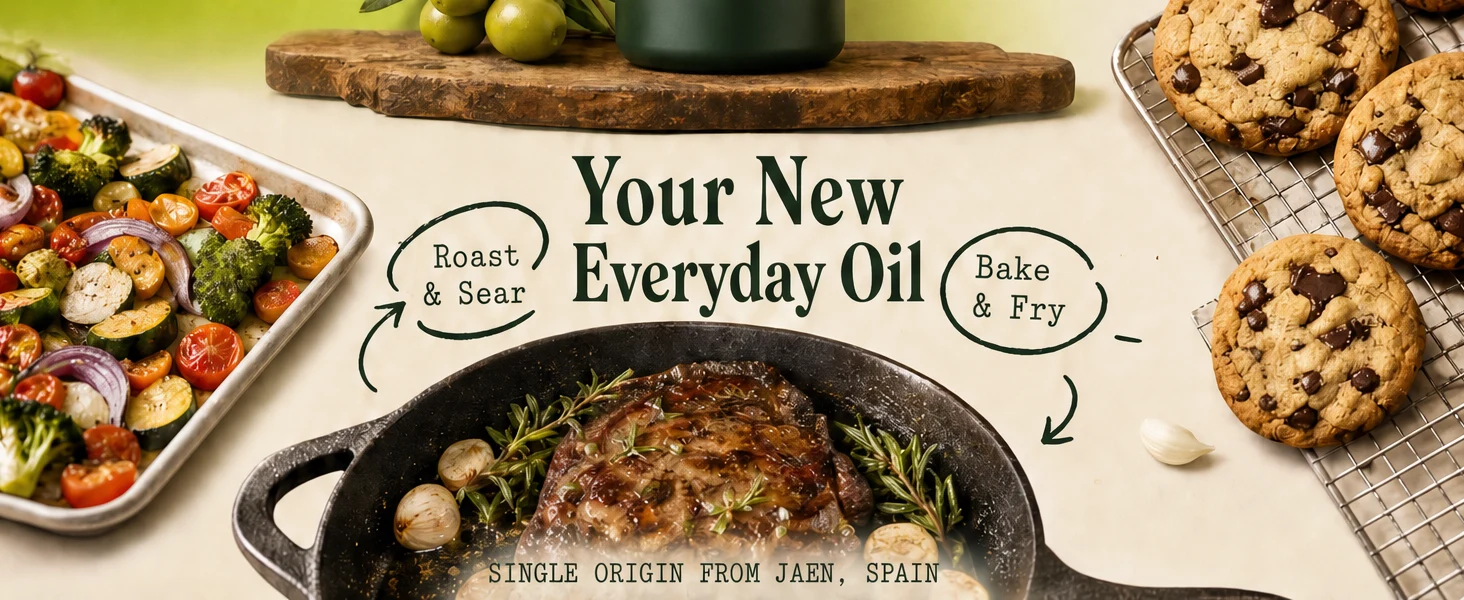
Pixii design example. Show the use cases instead of asking shoppers to imagine them.
4. Put proof beside the doubt
Trust marks work best when they answer a concern. Use certifications that apply to the product or company, make that scope clear, and check Amazon’s content rules before uploading.
MaryRuth’s presents bottle sizes alongside Clean Label Project and B Corp marks. The image answers practical and trust questions in the same space.
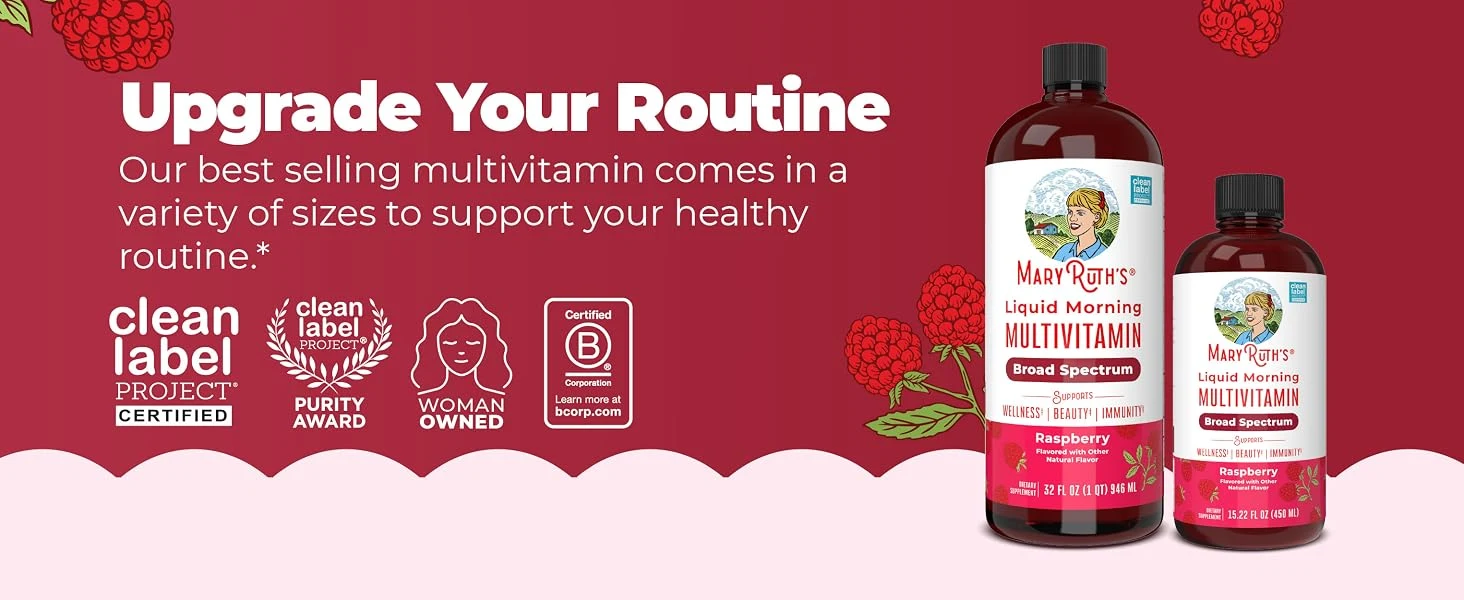
Observed on MaryRuth’s Amazon listing, October 16, 2026. This is an observation of the brand’s artwork, not independent certification verification.
A useful story order is promise → benefits → use → proof. Move proof earlier when trust is the main obstacle. Keep the colors, type, and visual rhythm connected across the page.
5. Read the mobile version before you approve it
Look at the design at phone size. If a headline, ingredient label, or instruction is too small, enlarge it or simplify the section. Don’t expect a shopper to zoom in to understand your offer.
Use Premium’s mobile fields to change the composition. A separate file gives you control; it doesn’t make the design readable automatically.
How A+ modules work
A+ Content consists of several modules. Each module has its own fields for images, text, or other content.
A flowing Premium design still uploads in sections. Pixii generates the full design and cuts it into the exact image sizes Amazon needs. You download the files and put them into the matching modules, in order.
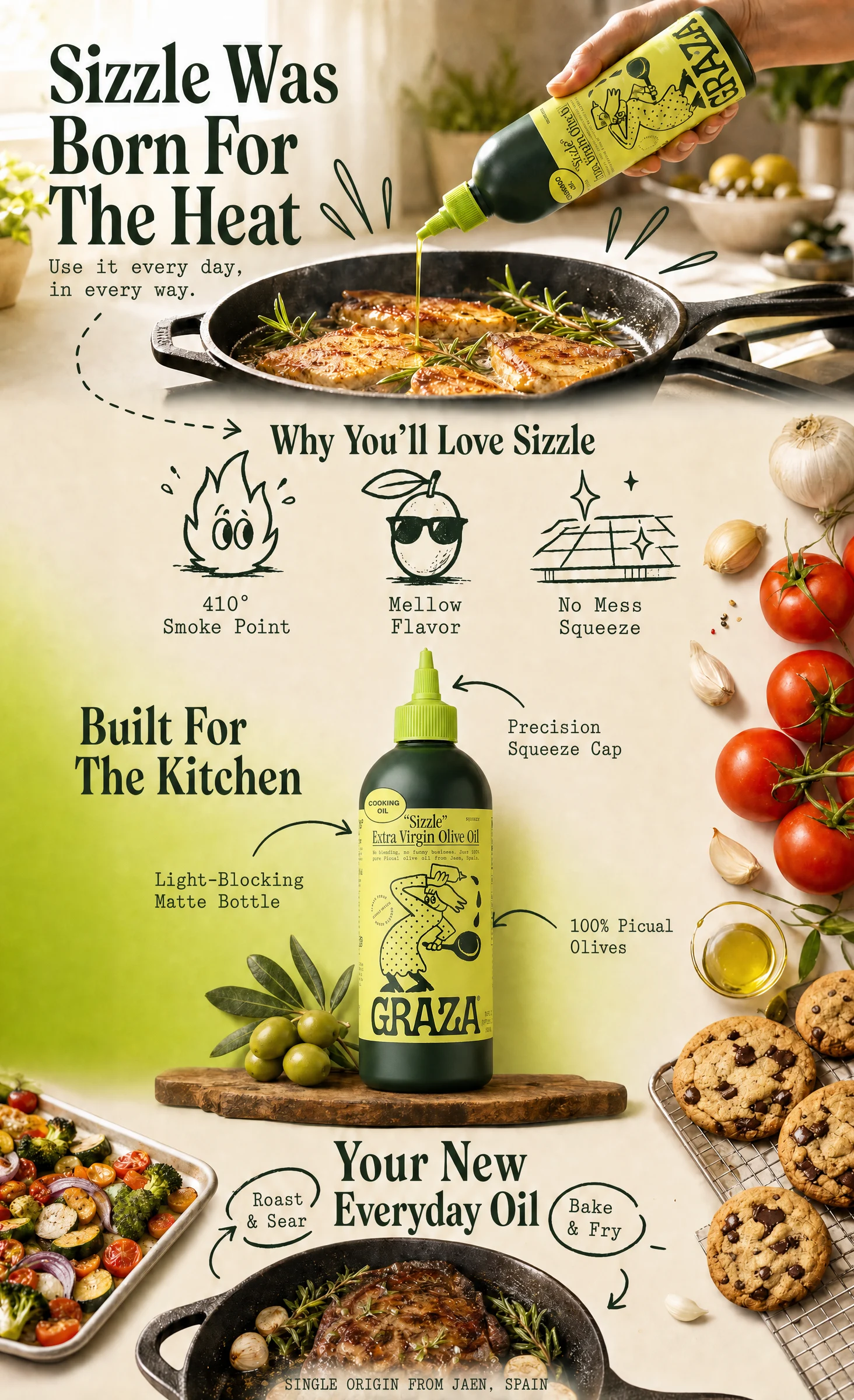
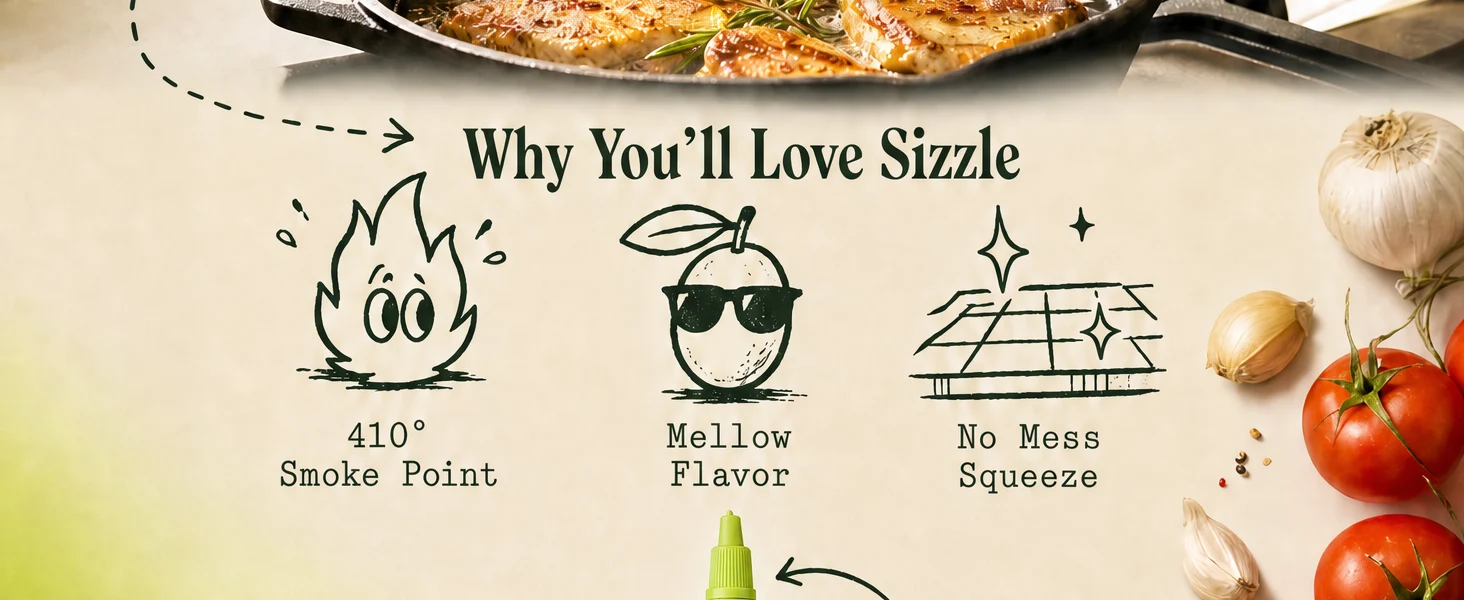
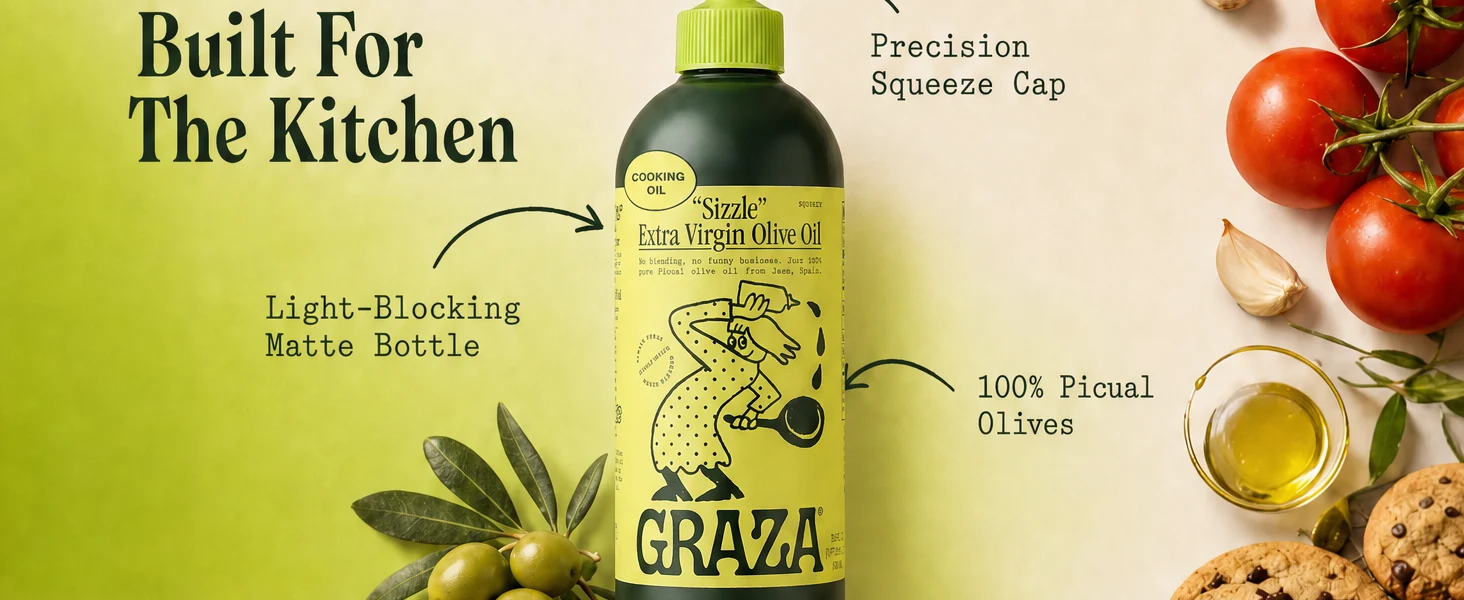
Pixii design example. The panels reproduce the four-module export cuts. WebP images shown here are compressed for this article.
The complete Graza design and its four upload sections are shown together above. The illustration uses the same cuts as Pixii’s four-module Premium export.
Pixii’s image sizes and export counts
| Pixii format | Each image, pixels | Images provided |
|---|---|---|
| Premium desktop | 1464 × 600 | 4 |
| Premium mobile | 600 × 450 | 4 |
| Basic | 970 × 600 | 4 |
These counts apply to Pixii’s current full-image option. The Separate Modules option provides five Basic images or six Premium images; Single Module provides one.
Amazon’s limits are five Basic modules or seven Premium modules. For Premium, the desktop and mobile files go into the same module. Four desktop files plus four mobile files still occupy four modules.
Seeing 970 × 300 in Amazon? You’ve selected a different module. That size belongs to Basic text-overlay banners. For Pixii’s 970 × 600 Basic files, choose Standard Image Header with Text. For Premium, choose Premium Full Image and fill its desktop and mobile image fields.
How to upload your A+ Content
- Generate your listing in Pixii and choose the A+ format you need.
- Review the product, copy, claims, and mobile design. Download the module images.
- In Seller Central, open Advertising → A+ Content Manager and start a Basic or Premium project.
- Add the matching image modules. Upload the numbered files from top to bottom.
- For Premium, add the matching mobile image inside each module. Add descriptive image keywords or alt text where requested.
- Preview both layouts, apply the ASINs, then submit for Amazon’s review.
The long preview helps you review the story. The individual module files are what you upload.
Watch the workflow: Basic vs Premium, image exports, and mobile artwork.
Frequently asked questions
Is A+ Content free?
Amazon’s A+ tools are free for eligible sellers. Premium access is available to brand owners at no additional cost under Amazon’s current announcement. Your selling plan and the cost of producing the artwork are separate.
Does A+ guarantee higher conversion?
No. Amazon reports sales increases of up to 8% for Basic and up to 20% for well-implemented Premium. Those figures are not a promise for your listing. Test your content against your own baseline.
Is Premium mobile a separate A+ tier?
Premium mobile is artwork for supported Premium modules. Upload each mobile image alongside its corresponding desktop image. Basic uses the same image artwork across screens.
Can I use more than four modules?
Yes. Four is the current Pixii full-image export count. Amazon allows up to five Basic modules or seven Premium modules, so you can add other supported content within those limits.
Why doesn’t a 600 × 450 image fit a 970 × 300 slot?
The image and slot belong to different formats. A 600 × 450 file is for Premium mobile. The 970 × 300 slot is a Basic text-overlay banner. Select the module that matches your export.
Should I upload one long image?
Upload the individual files Pixii exports. Amazon builds the page from modules, so each section needs its own matching image field.
Your A+ has a job: answer the question that is holding up the sale. Give that answer room, make it readable on a phone, and use the right upload format.
Sources and what we checked
- Amazon: A+ Content. Source of the up-to-8% and up-to-20% sales figures, based on Amazon internal data.
- Amazon: types of A+ Content. Module counts, available module types, and features.
- Amazon’s July 2026 brand-owner announcement. Expanded Premium access. Account and marketplace availability should be checked in Seller Central.
- Amazon: Premium module guide, page 3. Full-image desktop and mobile specifications. Standard module guide, page 10, covers the separate 970 × 300 text-overlay format.
- Original listing review: Goli B07R8GD47V and MaryRuth’s B00MDRTV8A, inspected October 16, 2026. We reviewed their A+ image assets, not their sales or conversion data. An extracted image can be a carousel slide; image counts are not module counts.
- Pixii export sizes and counts checked against the production configuration. The Graza illustration uses a Creative Library original and the production four-module crop dimensions. Pixii examples are design demonstrations, not claims of brand endorsement.