Why AI distorts your product
Think of AI image models as world models. They use clues in your photo to understand how your product exists in the real world.
A floating packshot or render looks great on Amazon, but it’s missing those clues. Shadows, reflections and texture help AI understand the product. It needs some sense of gravity.
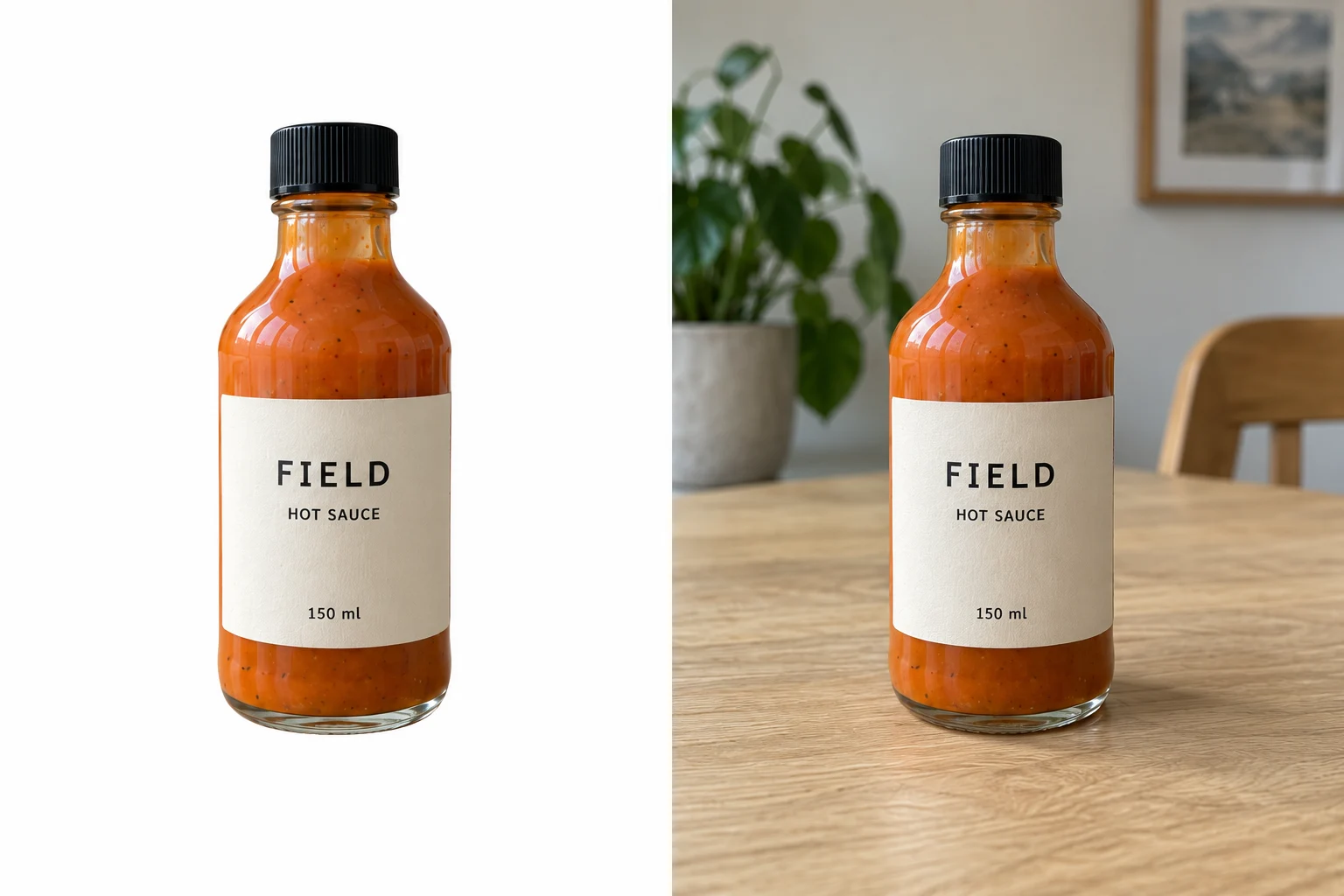
AI illustrations.
A practical estimate: these basics resolve about 80% of input-photo issues.
Which photos should you use?
Use
- Real photos from your phone or camera
- Original high-resolution files (1 MB+ as a rough guide)
- No edits
- Multiple angles and the product in use (nice to have)
Avoid
- Renders and mockups
- Compressed photos from Amazon, WhatsApp or Canva
- Products floating on white / background removed
- Human or AI edits, cutouts and touch-ups
Ideally, take these 5 photos
-
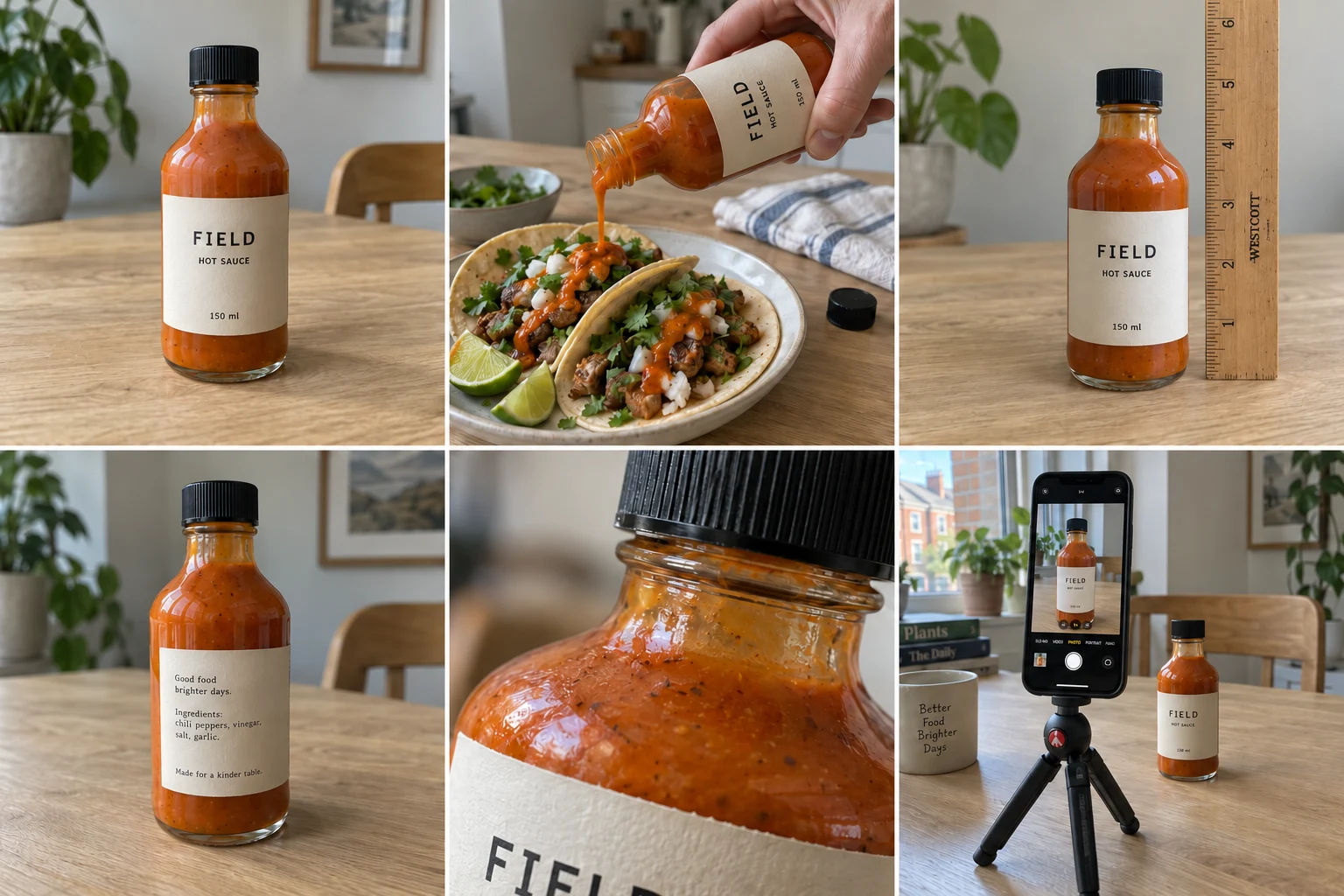
Hero
On a real surface: shape, label and contact shadow.
-
In use
Show it pouring, opening or being worn. Match the action you want AI to create.
-
Scale
Add a ruler or familiar object. Include dimensions in your product details.
-
Hidden angle
Show the back, side, interior, or open and closed states.
-
Distinctive detail
Show its distinctive texture, stitching, hinge or feature.
Illustrated shot list.
Upload the originals
Keep your original camera files. Refresh them when the product changes.
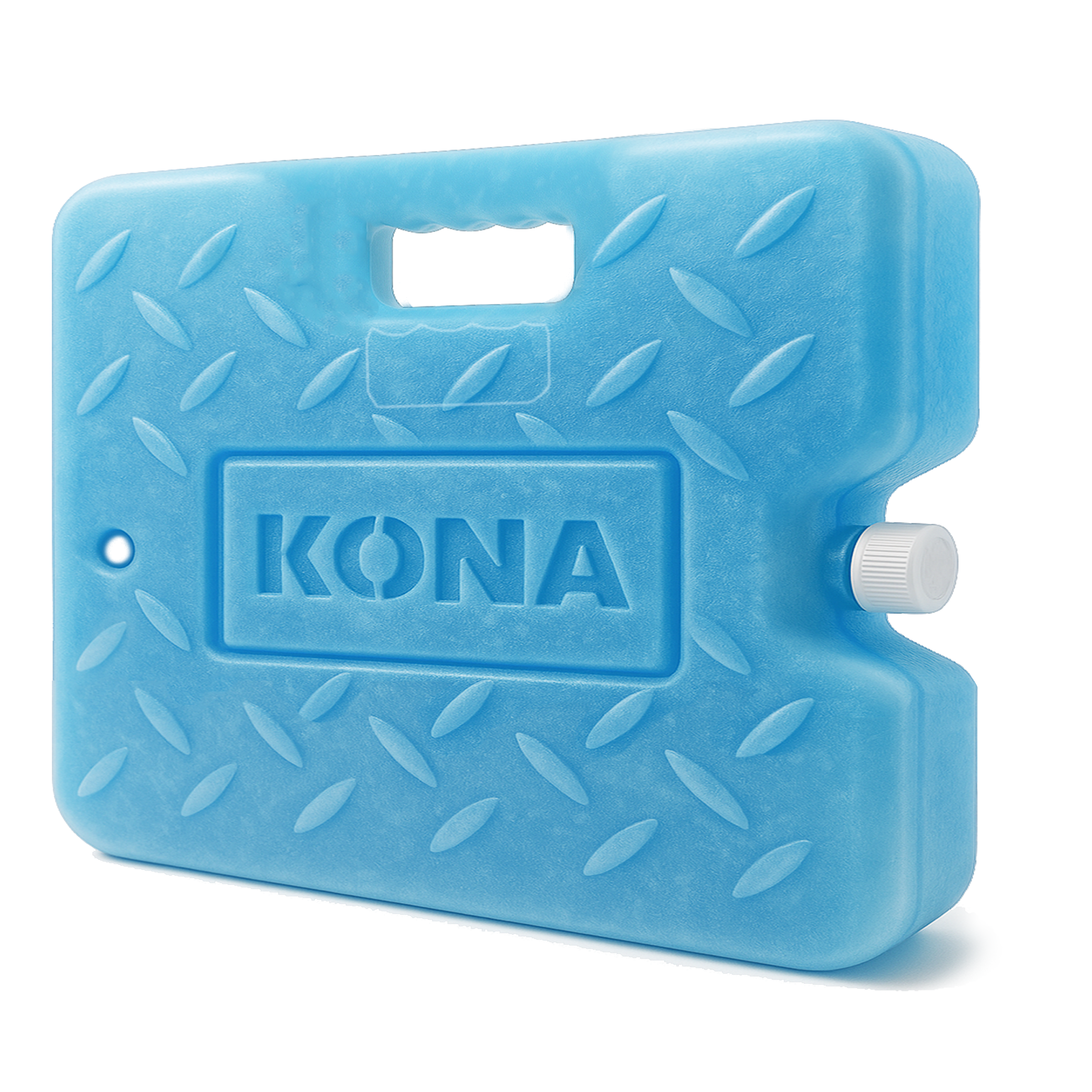
- Side fill spout
- Raised diamond tread
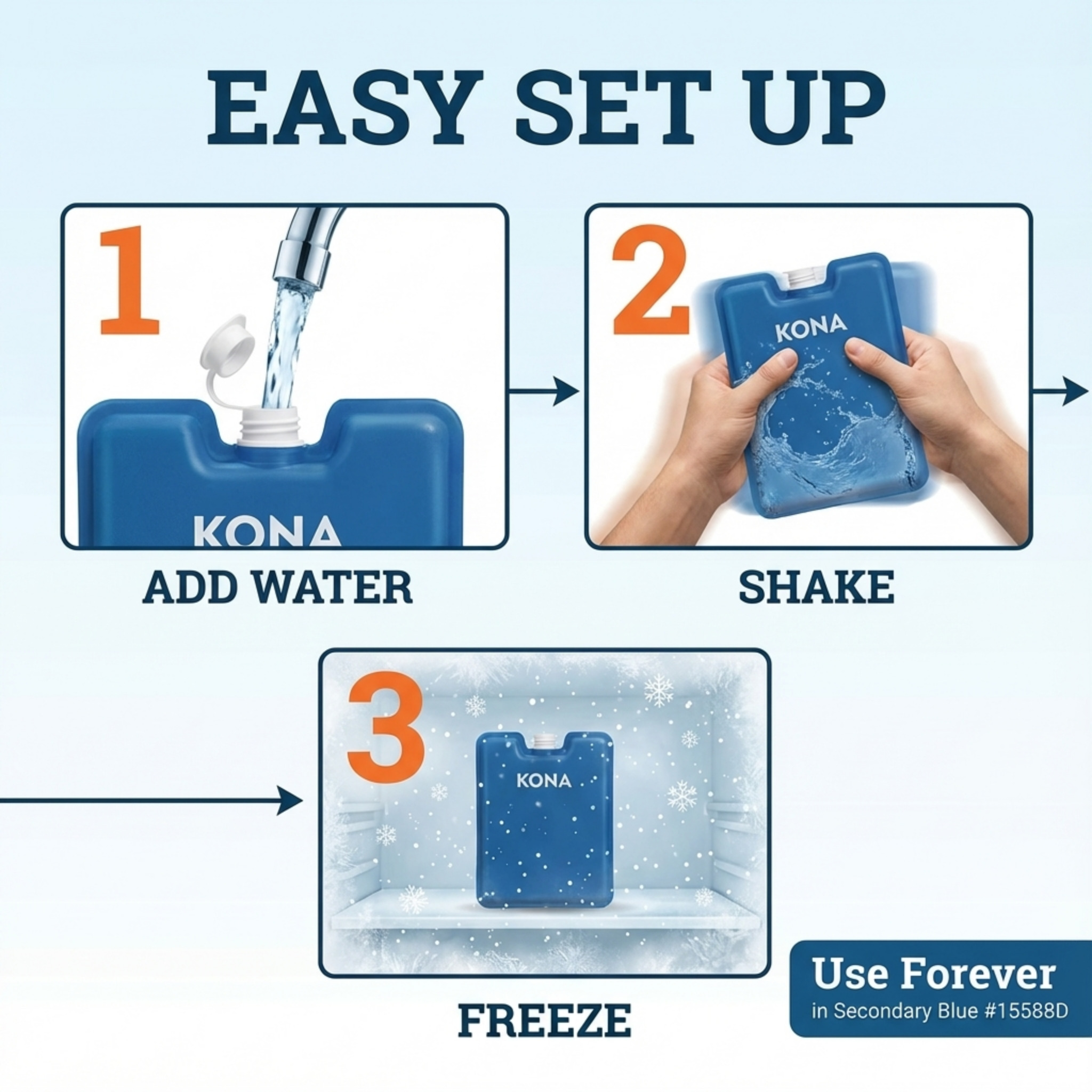
- Spout in the wrong place
- Raised texture missing
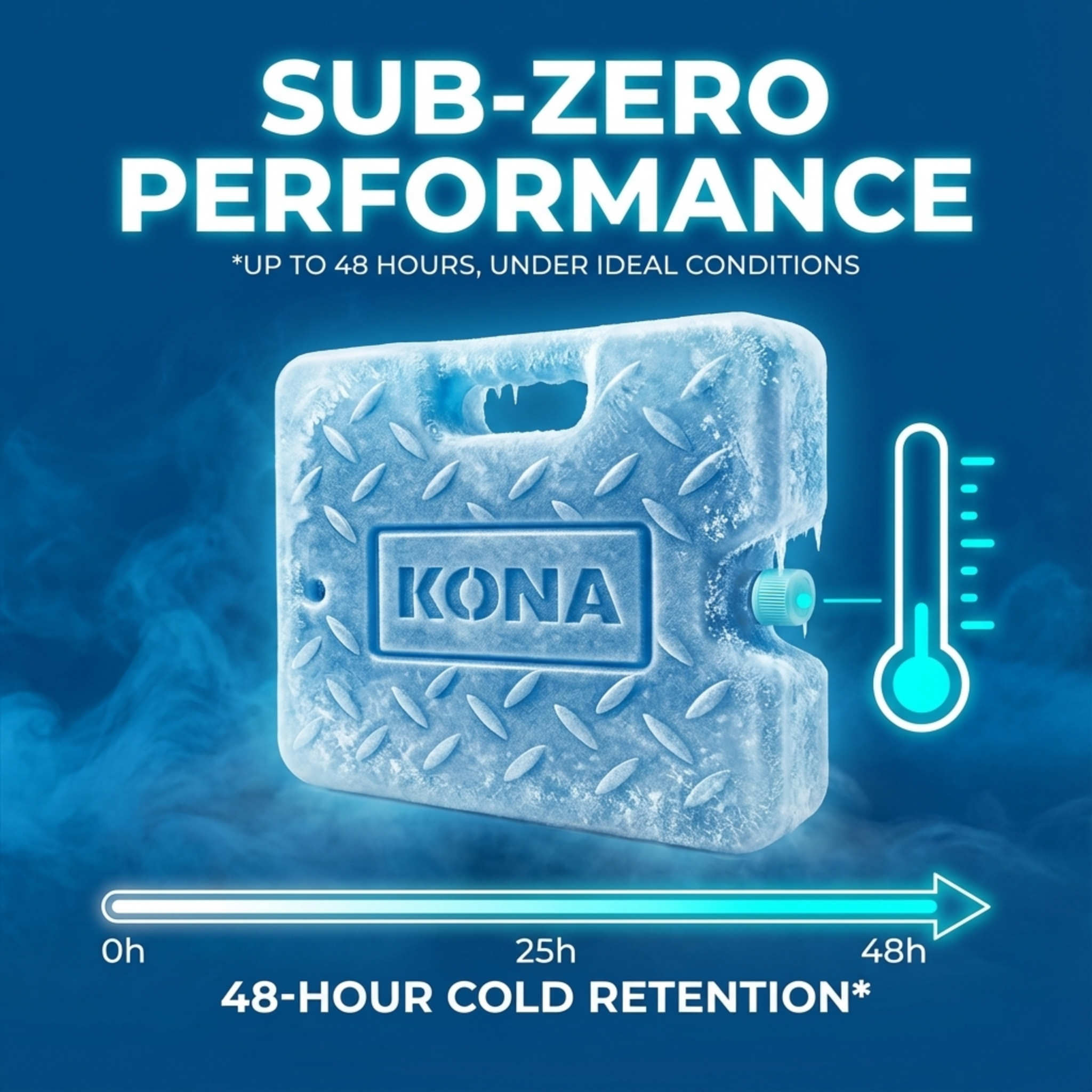
- Accurate product details
- Better design and writing
Original product photo and demo outputs. Not a controlled test. Select an image to view full-size.
Shoot with your phone
Spend 30 minutes taking 3 good photos. Reuse them to create 1,000 images over the years across Amazon, Shopify and social media.
Checklist
- Clean the lens. Use the rear camera.
- Shoot beside a window in soft daylight.
- Use a tripod or prop the phone securely against books to keep it still.
- Use a 3-second timer so your finger tapping the shutter doesn’t shake the camera.
- Tap to focus. Zoom into the result to check the label.
- Check your photos and take more. Make sure the full product is visible.
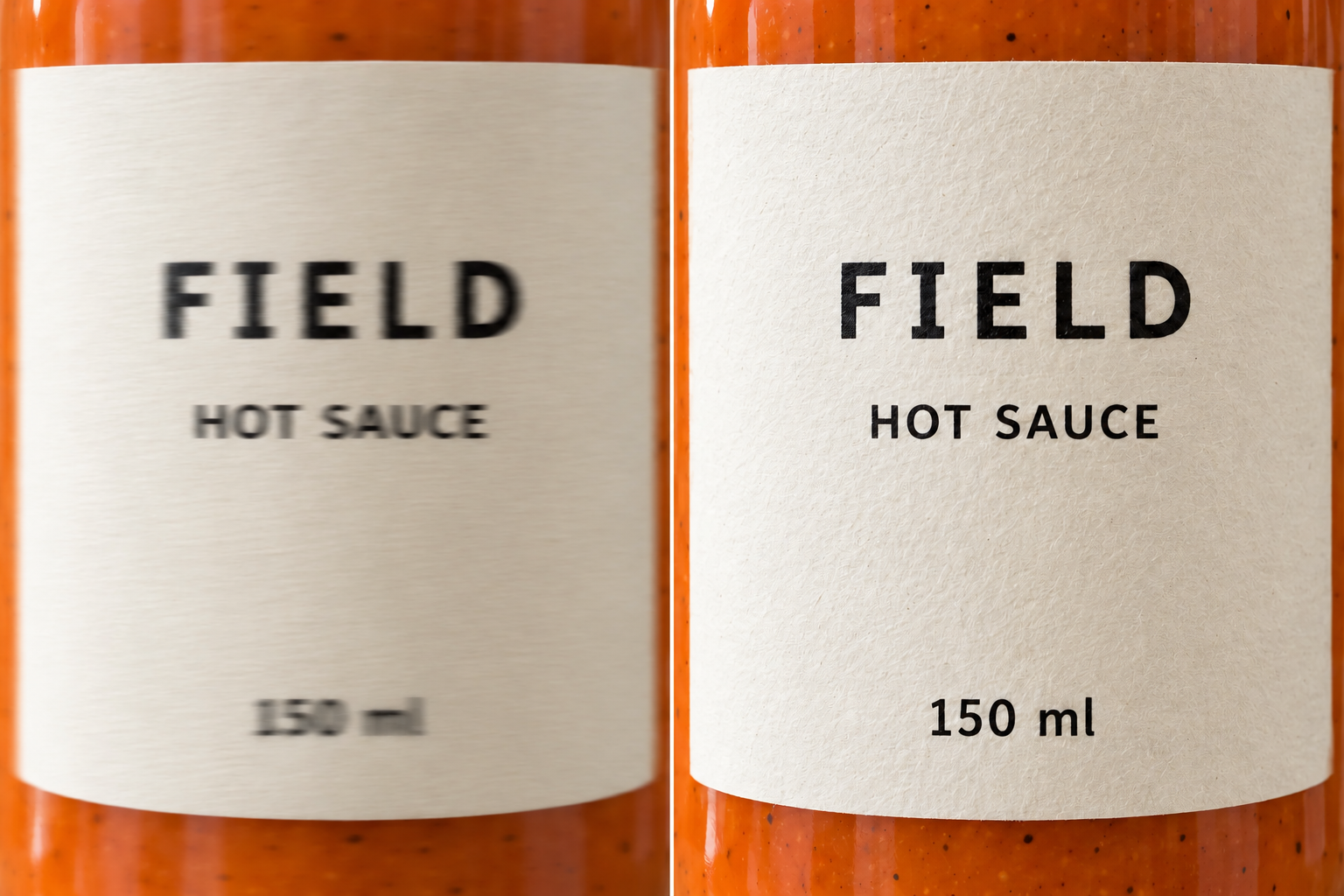
AI illustration of motion blur, not a camera test.
Optional: a small photo kit
Taking lots of shots and want consistent results? It’s worth investing a little here. This kit works well for smaller products. Apparel or larger products need a bigger lightbox or a different lighting setup.
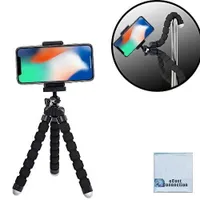 Tabletop tripod $8.49 Acuvar 6.5-inch tripod + phone mount
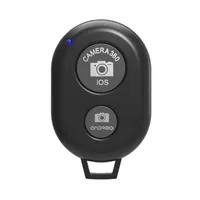 Bluetooth remote $4.99 Bower wireless shutter
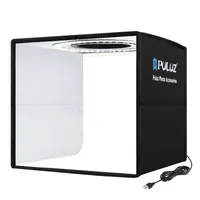 Small lightbox $22.99 PULUZ folding photo box
Listed US prices checked October 8, 2026; shipping extra. Check phone fit and Bluetooth compatibility. Nonaffiliate links. Product photos: linked retailers and Bower.
Unique product? Provide more input.
AI doesn’t know what you don’t tell it.
Show how the fabric hangs, how the product works, and how someone uses it. Add different settings, angles and close-ups.
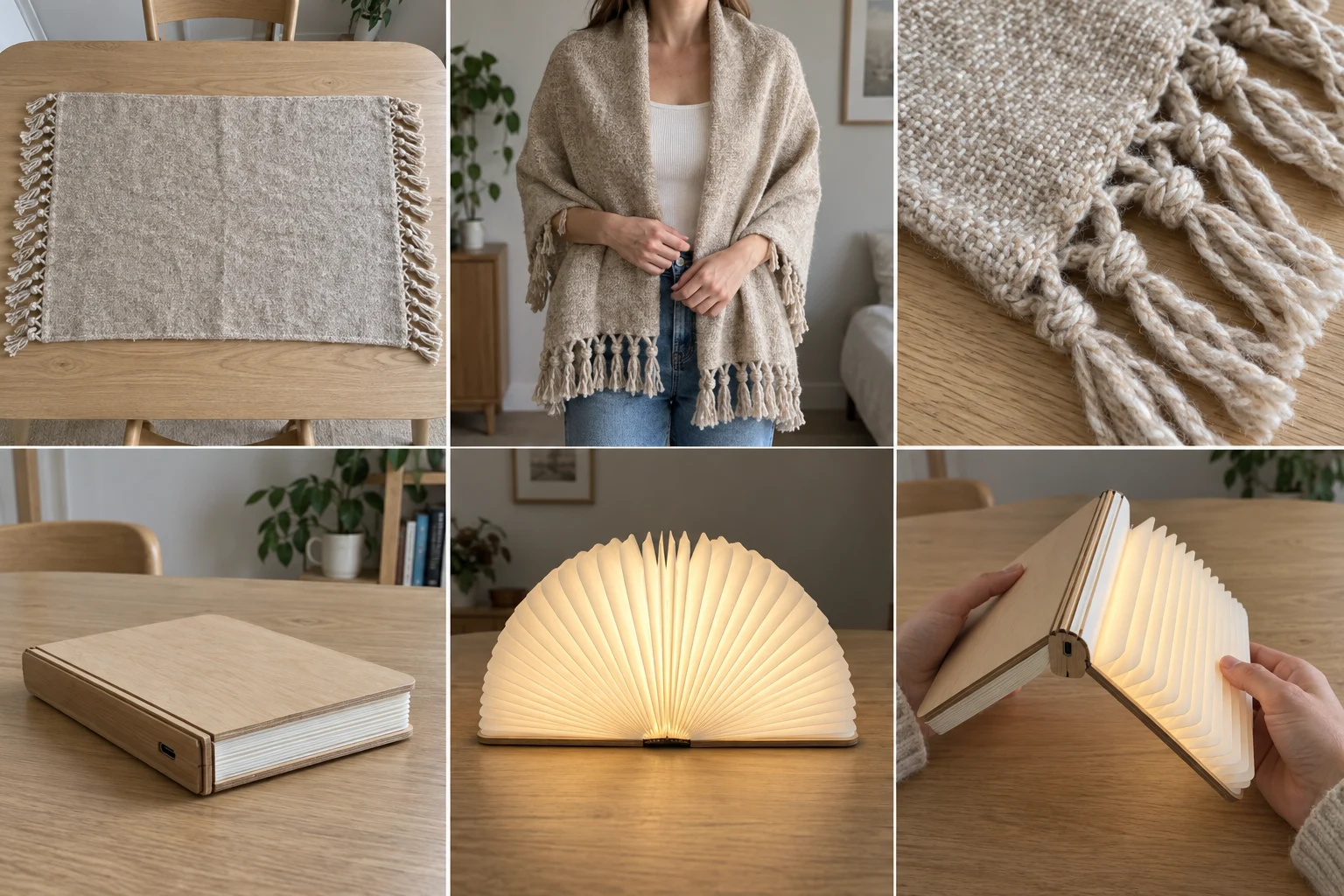
AI illustrations.
Beyond images, add detail. In Pixii, open the Products tab and add photos. In Description, explain what it’s made of, how it works, who should use it and how. Fill in dimensions, then click Update Product.
Quick answers
Do I need a studio or special file format?
No. Original phone photos with readable details work. 1 MB+ is a rough guide, not a quality test. No RAW required; normal phone processing is fine.
Why avoid copies from Amazon, WhatsApp, Canva or Slack?
Smaller copies load and send faster, but resizing and lossy compression remove detail. Amazon serves multiple image sizes; WhatsApp and Canva have quality settings. In Slack, download the uploaded file instead of copying its preview. An unchanged original is fine, wherever it was shared.
Are white backgrounds bad?
A studio photo on white is fine, especially with a shadow. Keep a floor beneath the product so it has gravity. Avoid Canva or Photoshop background removal, which erases those physical clues.
What if I only have renders or edited photos?
Pixii still works. Missing details require more checking and editing. Add a real phone photo when you can.
What if AI still changes the product?
Models still make mistakes. Show the mistaken detail, explain its construction, simplify the scene, or try another model. Check every result.
File-quality references: Amazon image sizes, WhatsApp quality settings, Canva export settings, Slack file downloads.