Connect Pixii to top MCP clients
However you like to design, the Pixii MCP server adds Pixii context to your favorite agentic tools.
Connect Pixii to ChatGPT
- 1
Open ChatGPT Settings, go to Apps & Connectors and choose Create. Developer mode needs to be on.
Open ChatGPT connectors - 2
Name it Pixii, paste the server URL and keep OAuth as the authentication.
https://mcp.pixii.ai/mcp - 3
Sign in to Pixii in the window that opens and click Approve. Then ask: "Design the listing for ASIN B0DCPKQ8G7".
Connect Pixii to Claude Code
- 1
Add the server from your terminal.
$ claude mcp add --transport http pixii https://mcp.pixii.ai/mcp - 2
In Claude Code, run /mcp, pick pixii and choose Authenticate. Sign in to Pixii in the browser and click Approve.
/mcp - 3
Ask Claude Code to design, clone or extend a listing. It calls the Pixii tools and waits for the job to finish.
Connect Pixii to Claude
- 1
Open Claude Settings, go to Connectors and choose Add custom connector.
Open Claude connectors - 2
Name it Pixii, paste the server URL and click Add, then Connect.
https://mcp.pixii.ai/mcp - 3
Sign in to Pixii in the window that opens and click Approve. Then ask: "Design the listing for ASIN B0DCPKQ8G7".
Connect Pixii to Codex
- 1
Add the server from your terminal.
$ codex mcp add pixii --url https://mcp.pixii.ai/mcp - 2
Start Codex. The first time it uses a Pixii tool it opens the Pixii sign-in; click Approve.
- 3
Then ask: "Design the listing for ASIN B0DCPKQ8G7".
Connect Pixii to Others
- 1
Add this to your client's MCP configuration, for example .cursor/mcp.json.
{ "mcpServers": { "pixii": { "url": "https://mcp.pixii.ai/mcp" } } } - 2
Sign in to Pixii in the window that opens and click Approve. Then ask: "Design the listing for ASIN B0DCPKQ8G7".
Ask Pixii, get listing
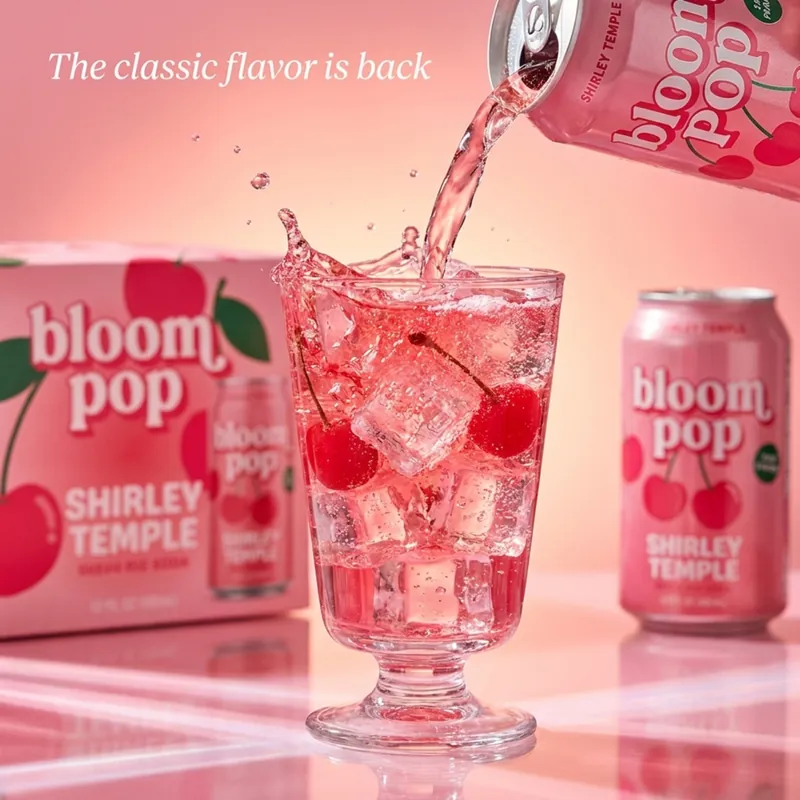
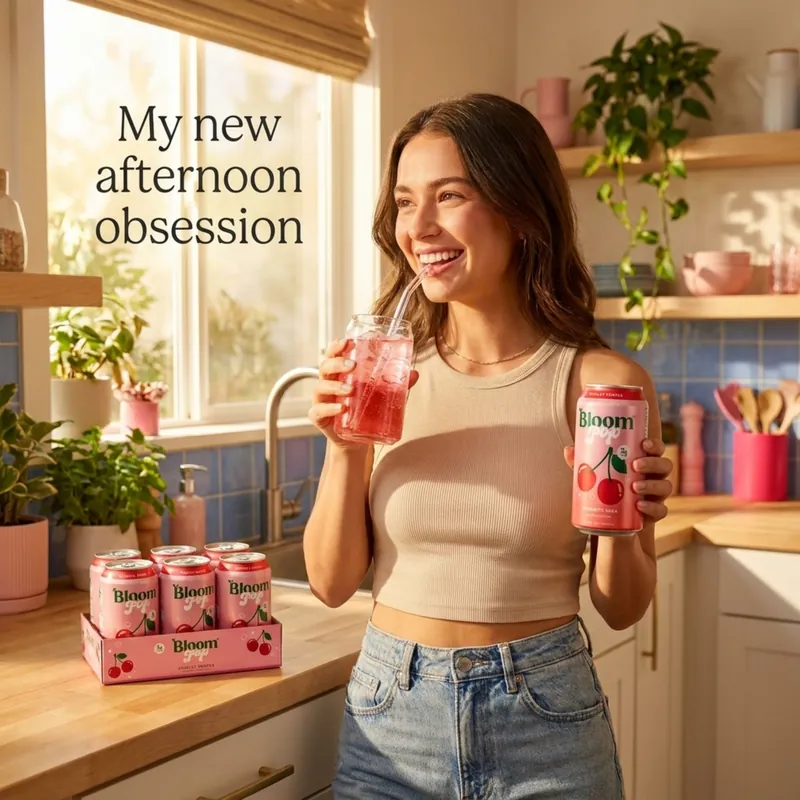
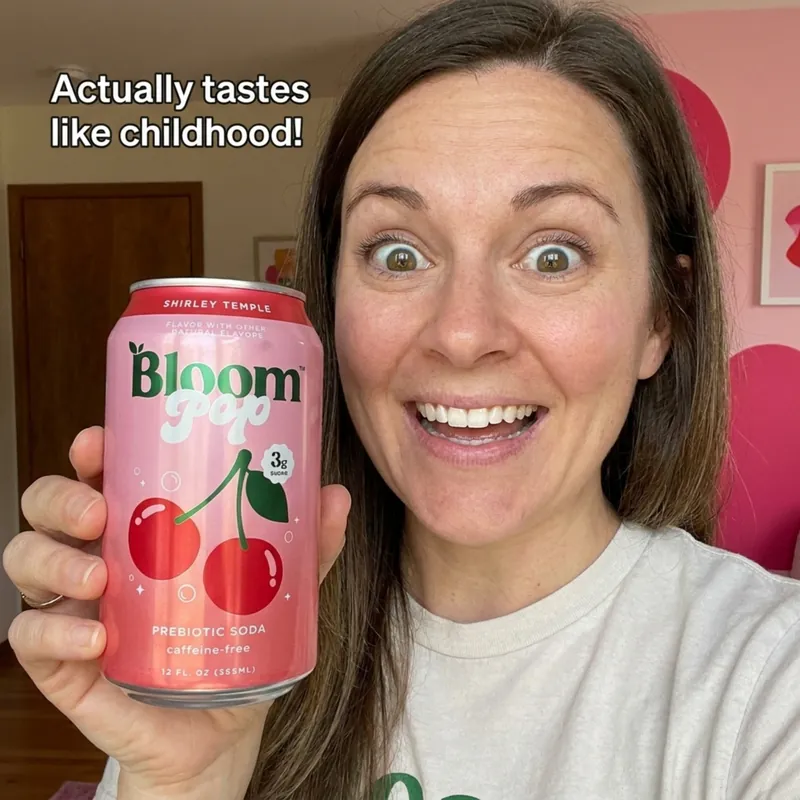
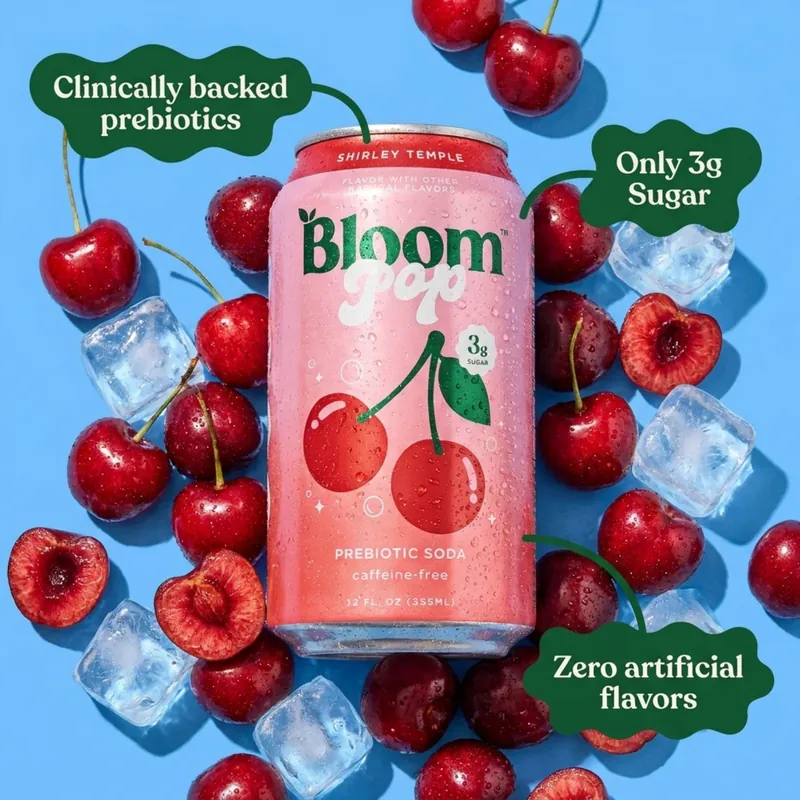
Say "design the listing for ASIN B0DCPKQ8G7" in your agent. Pixii reads your reviews, sizes up your comparables, and studies the top 5% of your category, then designs the listing.
- Main image, lifestyle images, and infographics
- A+ content modules, ready to upload
- Listing videos from the same product photos
Add a deliverable
Already have a listing? Ask for one more thing and Pixii adds it to the same listing, on brand and from the same product photos.
- One more main image, lifestyle image or infographic
- An A+ content module or a listing video
- Title and bullets written from your reviews
Scale to 1,000 products
Perfect one listing, then ask your agent to clone it across your catalog.
- Professional design for every product
- Variants
- Translations in 1 prompt
Listings that sell, everywhere you sell
- Amazon, Shopify, Walmart, TikTok Shop, and everywhere else
- Compliant with each platform's rules
- Optimized to win with the unspoken rules
See your listing, redesigned
Paste an ASIN and get listing visuals in 2 minutes.
Free. No credit card.

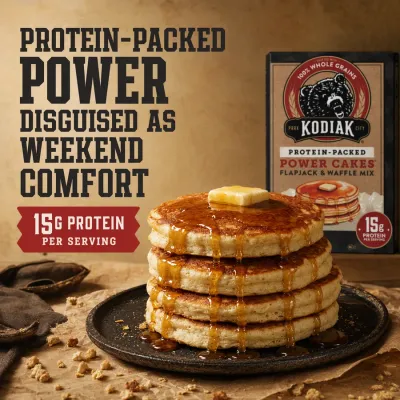
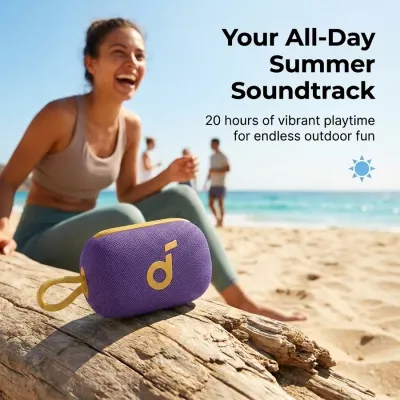
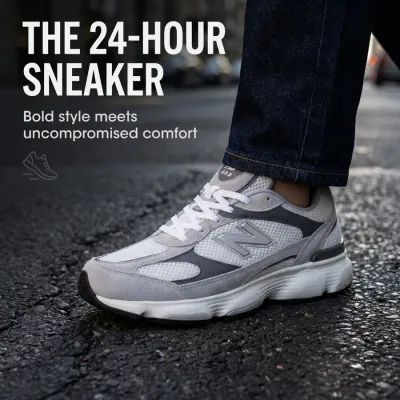
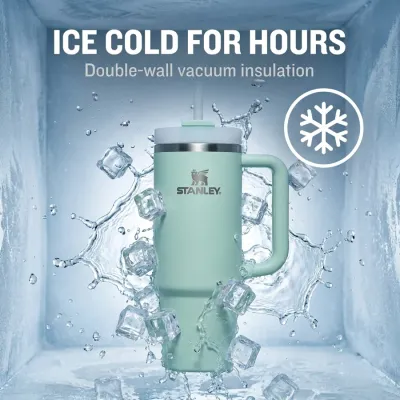

MCP (Model Context Protocol) is how AI agents call tools. The Pixii MCP server at mcp.pixii.ai lets ChatGPT, Claude, Claude Code, Codex and other MCP clients generate Amazon listing images, A+ content and listing videos, clone them across your catalog, and check job status, all from a chat.