Your ads are bringing in clicks, but the orders aren’t following. Before you raise the bid again, it’s worth checking whether the listing is what’s losing those shoppers.
Nassuff Mmadi of PPCAssist shared an example with us of a listing that got 3,000 clicks and converted only 2.7% of them, about half of what he considers average. A bigger budget there would have bought more traffic for the same weak result.
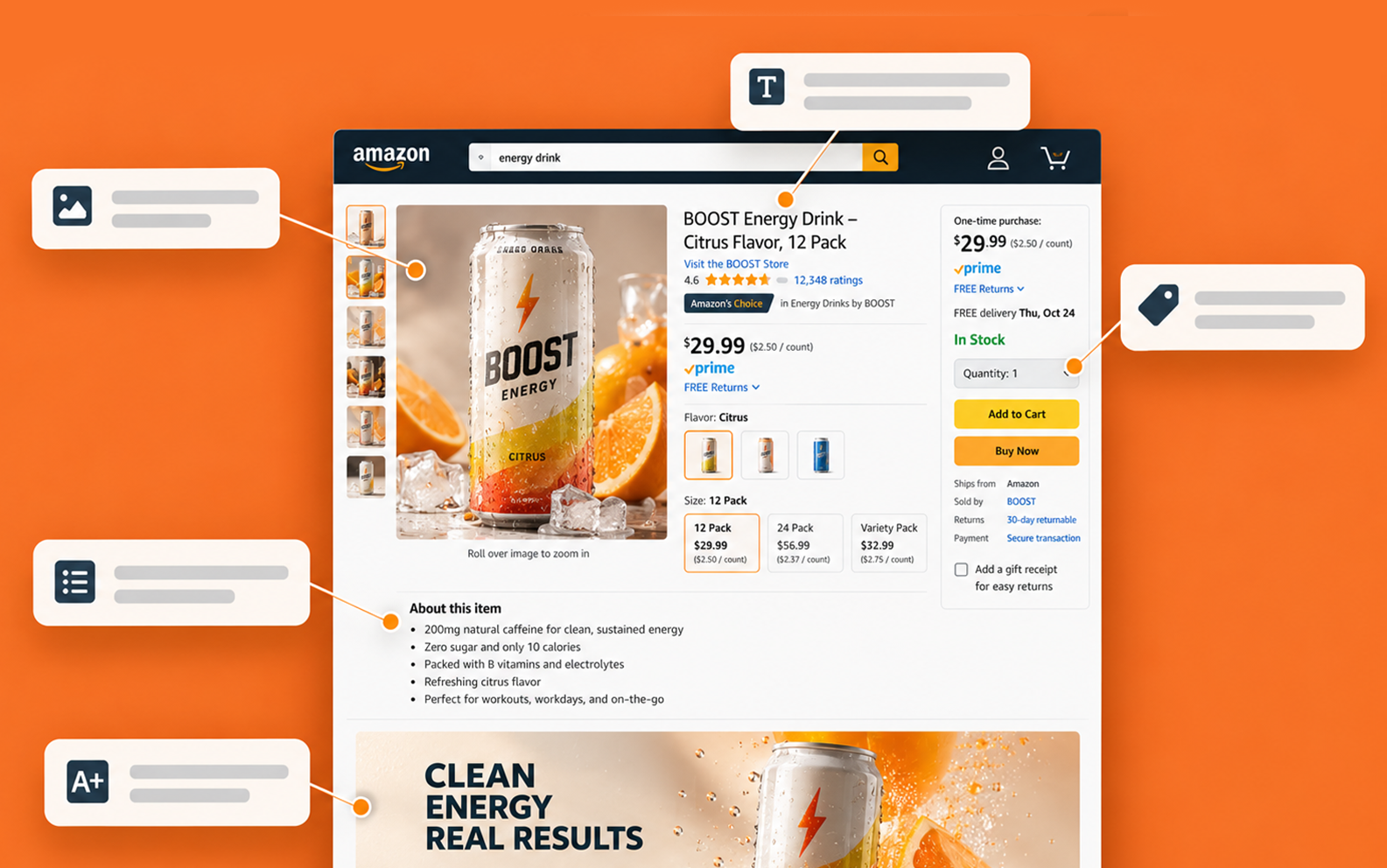
Shoppers move through a listing in the same order every time. The title and main image win or lose the click, and once they’re on the listing, the gallery and A+ Content win or lose the sale.
Reviews and Q&A matter more than ever too, because Rufus, the AI assistant 250 million shoppers used in 2025, reads them before it recommends you.
That’s the order to optimize an Amazon product listing. Most of the fixes take a few days in Seller Central, and each one has a number you can check to see if it worked.
Key Takeaways
- Fix the listing in the order shoppers see it. Title and main image win the click, slots 2 to 7 and A+ Content win the sale, and reviews and Q&A decide whether Rufus recommends you.
- Amazon’s title rules changed on January 21, 2025. Most categories cap titles at 200 characters, ban characters like ! and $, and don’t allow a word more than twice.
- Your main image is the only visual that shows in search. It has to sit on pure white, fill 85% of the frame, and run at least 1,000 pixels, and a $450 test on it can be worth $19,000 a month.
- Rufus reads what you’d rather hide. Full-text reviews gave the biggest lift in 5,000 AI shopping simulations, and a 4,000-character keyword block made recommendations worse.
- Pixii collapses steps 2 to 5 into one paste. An ASIN goes in, and seven editable visuals, the strategy behind them, and one-click A+ Content come back in about two minutes.
Short answer: To optimize an Amazon product listing, fix it in the order shoppers see it.
Put your search terms in a title under 200 characters, win the click with a white background main image, sell in image slots 2 to 7, answer objections in A+ Content, then feed Rufus with reviews and Q&A.
Test one change at a time and read the result in Business Reports before you touch the next one.
Find Out What’s Broken Before You Change Anything
Before you touch the title or the images, check two numbers. Between them, they show you exactly where the listing is losing people.
The first is click-through rate, or CTR, which is the share of shoppers who see you in search and click. The second is conversion rate, or CVR, which is the share of visitors who go on to buy. Seller Central calls it unit session percentage in Business Reports.
If your CTR is low but your CVR holds up, shoppers aren’t clicking, so the title and main image are the problem. If plenty of people click but few of them buy, the sale is slipping away after the click, in the gallery, the bullets or the A+ Content.
For a benchmark, Nassuff put average at a 1% CTR and a 5% CVR on our podcast. He called a 10% CVR good and said strong categories can reach 25 to 30%.
If you want an outside view as well, our free Amazon Listing Grader scores any listing from A to F against 100,000 top-performing Amazon listings. It also points to the part that’s dragging the grade down, so you know where to start.
Step 1. Put the Keywords Where Amazon Reads Them
Your title, bullets, backend search terms, and structured attributes are where Amazon’s search reads for ranking.
Whether A+ text counts is disputed, so the keywords you want to rank for have to live in the first three.
Pull the terms from Search Query Performance in Brand Analytics, which shows the exact queries behind your impressions and sales.
Keep the ones a buyer would type, and drop anything your product can’t deliver on. Ranking for a term you can’t convert costs money in ads and position.
The title rules since January 21, 2025
Amazon’s title policy now caps titles at 200 characters including spaces in most categories.
The characters !, $, ?, _, {, }, ^, ¬ and ¦ are banned unless they’re part of the brand name, and no word can appear more than twice, with prepositions, articles and conjunctions as the exceptions.
Amazon warned brand owners they’d get 14 days to act on suggested changes before it rewrites a non-compliant title itself. Write the brand, the product type, the one or two attributes that drive the search, and the size or count, in that order.
Our guide to Amazon product titles works through the structure with examples.
Bullets and backend search terms
Since August 15, 2024, Amazon restricts special characters, emojis, and phrases such as refund guarantees in bullet points.
Lead each bullet with the benefit, then the proof, and keep the first three on screen without a tap on mobile. The bullet point guide shows the pattern.
Backend search terms should be under 250 bytes, and Amazon moderators have warned that going over can get the entire attribute ignored.
Use the space for synonyms, spellings, and terms that didn’t fit the title, with no brand names, no repeats, and no subjective words like best or cheap.
Step 2. Win the Click With the Main Image
The main image is the only visual a shopper sees in search results, and it has to follow Amazon’s image requirements.
Pure white background at RGB 255, 255, 255, the product filling 85% or more of the frame, at least 1,000 pixels on the longest side for zoom, and nothing in the shot that doesn’t ship in the box.
Inside those rules, there’s still a lot to decide. Angle, how much of the packaging shows, whether a variant count or a size cue fits on the product itself, and how the image reads at thumbnail size on a phone.
Matt, the founder of ProductPinion, brought a case to our podcast that shows what’s at stake.
A $450 main image test produced a 17% higher click-through rate and 14% higher conversion, worth about $19,000 a month in recurring revenue for one listing.
His rule was that a pattern interrupt beats a pretty image, and that winners decay once competitors copy them.
Our main image guide covers the compliant ways to stand out, and our roundup of main image tools compares ten options for the slot.
Step 3. Sell in Image Slots 2 to 7
Slots 2 to 7 are where most of the selling happens, and most listings waste them on six angles of the same box. Each slot should answer a different question, in the order a shopper asks them.
| Slot | Job | What it shows |
|---|---|---|
| 2 | Benefit | The main reason to buy, as a headline over the product |
| 3 | Lifestyle | The product in use, by the person who buys it |
| 4 | Infographic | Three or four features called out on the product itself |
| 5 | Scale | Size against a hand, a counter or a familiar object |
| 6 | Comparison | Your product against the alternatives on the features that matter |
| 7 | Proof | How to use it, what’s in the box, or the claim a review keeps repeating |
Every image should run at least 1,000 pixels on the longest side so zoom works, and any text on it has to read at thumbnail size on a phone.
Our explainer on the Amazon image stack goes slot by slot.
If the lifestyle slots are the hardest ones to fill, watch Pixii design eight of them in about two minutes:
Step 4. Answer the Objections in A+ Content
A+ Content is the image and text section below the bullets, built from modules in Seller Central’s A+ Content Manager. Basic allows up to five modules and is free for Professional sellers.
Premium allows seven, adds video, carousels and Q&A, and needs a published Brand Story plus five approved A+ projects in the past 12 months.
Amazon’s A+ Content guide says Basic can increase sales by up to 8% and Premium by up to 20%, from its internal data.
The lift comes from answering what the bullets couldn’t, so pull the questions from your three-star reviews and give each one a module.
Keep prices, guarantees, competitor names, and time-sensitive words out of every module.
Amazon reviews submissions in up to seven business days, and a rejection restarts the clock. Our A+ best practices guide covers module-by-module design.
Step 5. Add a Product Video
A video in the gallery and in A+ Content gives the shopper the demo they’d get in a store.
Amazon’s A+ guide cites a survey in which 96.3% of customers called video important when deciding, and in which viewers were 3.6 times more likely to convert.
Keep it short, show the product doing the thing the bullets promise, and make it work with the sound off.
Amazon’s Premium video module accepts MP4 files up to 180 seconds, and Amazon recommends ten seconds or less for the full-width video.
Step 6. Feed Rufus and COSMO
Rufus is Amazon’s AI shopping assistant, and COSMO is the system Amazon built to understand why people buy a product rather than which words they typed.
Both change what your listing text has to do.
On Amazon’s October 2025 earnings call, Andy Jassy said 250 million shoppers had used Rufus in 2025, that users were 60% more likely to complete a purchase, and that Rufus was expected to drive over $10 billion in incremental annual sales, as Fortune reported.
Amazon’s own COSMO paper describes a knowledge graph of why products get bought, built from co-purchase and search-then-buy behavior, and reports a 0.7% lift in product sales in an A/B test on about 10% of US traffic.
What 5,000 AI shopping simulations rewarded
Joe Kiernan of Digital Fuel Capital ran about 50 fictional product pages through 5,000 AI shopping simulations and shared the results on our podcast.
Full-text reviews gave the biggest lift in recommendations, followed by persona-based Q&A and structured schema. A 4,000-character keyword block made the page less likely to be recommended.
Jon Tilley of ZonGuru made the same point. Rufus reads the listing for meaning and for answers to the questions a buyer would ask, so a listing that states who it’s for, what problem it solves, and what it doesn’t do gets recommended more often than one stuffed with terms.
In practice, that means answering real buyer questions in the Q&A section and in A+ Content, asking for reviews through Amazon’s Request a Review button, and writing bullets a person would say out loud.
Step 7. Check Every Change on a Phone
The listing looks different on a phone, and that’s where a lot of your shoppers meet it.
The title truncates, only the first bullets show without a tap, image text shrinks, and three-image A+ modules stack vertically.
Open your listing in the Amazon app after every change. If a callout isn’t readable at thumbnail size, it isn’t doing anything.
Our guide to mobile listing optimization lists what to check.
Step 8. Test One Change at a Time
Amazon’s Manage Your Experiments runs free A/B tests on titles, main images, bullets, descriptions, and A+ Content for Brand Registered sellers.
Amazon says a high-confidence result usually needs eight to ten weeks and an ASIN with several dozen orders a week.
If the ASIN doesn’t qualify or you can’t wait, a shopper poll gives you a preference read in hours.
Treat the result as a preference rather than a sale, and expect Amazon’s own CTR to reflect a main image change two to four weeks after it goes live.
Change one element per test. If the title and the main image change in the same week, you’ll never know which one moved the number.
Step 9. Roll the Winner Across the Catalog
One optimized listing is a test. The return comes when every size, color, and flavor gets the same treatment, and that’s the step most brands stall on, because it means repeating the work dozens of times.
In Pixii, Clone applies one master listing design across variants, other products and other languages with zero prompts, and the Factory designs 50 listings in about 20 minutes on the Scale plan.
Our guide to images at scale covers catalogs of 1,000+ SKUs.
Where Pixii Collapses Steps 2 to 5
Steps 2 to 5 used to mean a photoshoot at $5,000 or more and six weeks, or a designer redesign at $1,500 or more and three weeks. We built Pixii to do that part from one paste.
Paste an ASIN, and Pixii reads your listing, your reviews, and the competitors next to you in search, then writes a short strategy for your buyer.
It designs seven editable visuals around that strategy in about two minutes, starting with a white background main image, with title and bullets in the set and A+ Content one click away.
You never write a prompt, and every output is a design rather than a flat image, so you can change any word with Convert to Layers or regenerate one area with Spot Edit.
Pixii is trained on roughly 100,000 top-performing Amazon listings, and sellers and brands with established listings typically see a 30% sales lift from better listings.
The last stretch is still yours. John Aspinall of Aspi described it as getting from zero to 85%, with the hours chewed up after that. Check every design against the rules for your country and category, and bring the search terms from step 1 with you, since Pixii builds its strategy from your reviews and competitors rather than from search volume.
Pixii isn’t the right fit if your product has no visual analogue online, since results track how common the product looks, or if you only sell one SKU and will never need the creative again.
The Amazon Listing Optimization Checklist
- Diagnose. CTR and unit session percentage from Business Reports, plus a Listing Grader score.
- Title. Under 200 characters, no banned characters, no word more than twice, brand and product type first.
- Bullets and backend. Benefit then proof, no emojis or guarantees, search terms under 250 bytes.
- Main image. Pure white, 85% fill, 1,000 pixels or more, nothing that doesn’t ship in the box.
- Slots 2 to 7. One job per slot, text readable at thumbnail size.
- A+ Content. Five modules on Basic or seven on Premium, each answering a review objection, with no prices or guarantees.
- Video. Short, sound off, showing the product doing what the bullets promise.
- Rufus and COSMO. Reviews requested, Q&A answered, bullets written for meaning.
- Mobile. Checked in the app after every change.
- Test. One change at a time, read in Manage Your Experiments or a poll.
- Scale. The winner applied across every variant.
FAQs About Optimizing an Amazon Product Listing
What Is the Most Important Part of an Amazon Listing to Optimize?
The main image, because it’s the only visual a shopper sees in search and it decides whether anything else on the listing gets seen at all. After that, slots 2 to 7 and A+ Content carry the sale. Fix the click first, then the conversion.
How Long Does Amazon Listing Optimization Take to Show Results?
A main image change shows in click-through data two to four weeks after it goes live, and Amazon’s Manage Your Experiments wants eight to ten weeks for a confident A/B result.
Conversion changes from the gallery and A+ Content show up in unit session percentage within a few weeks if traffic is steady.
How Many Keywords Should Go in an Amazon Title?
Enough to cover the product type and the one or two attributes that drive the search, inside 200 characters, with no word used more than twice. The rest goes in bullets and the backend search terms. Stuffing the title hurts readability and can now trigger Amazon’s own rewrite.
Does A+ Content Help Amazon Listing Ranking?
Treat it as a conversion asset first. Amazon says Basic A+ can lift sales by up to 8% and Premium by up to 20%, and a better conversion rate feeds ranking indirectly. Whether A+ text is indexed for Amazon search is disputed, so keep your ranking terms in the title, bullets and backend.
Can I Optimize an Amazon Listing Without Brand Registry?
Yes, for most of it. Title, bullets, backend terms, the main image, and the gallery are open to every seller.
Since January 2024, Amazon also allows Basic A+ on generic ASINs for Professional sellers. Brand Registry adds Premium A+, Brand Story, Manage Your Experiments, and Sponsored Brands.
How Much Does It Cost to Optimize an Amazon Listing?
Copy changes cost your time. The visuals are the expense, with photoshoots at $5,000 or more and six weeks and designer redesigns at $1,500 or more and three weeks.
Pixii designs the full set from an ASIN on a free trial, and Pixii’s plans start at $207 a month billed annually on the plan that includes A+ Content.
What Is a Good Conversion Rate for an Amazon Listing?
On our podcast, Nassuff Mmadi of PPCAssist put 5% as average, 10% as good, and 25 to 30% as possible in strong categories, with a click-through rate above 1%. Your own category sets the bar, so compare against your best ASIN rather than a blanket number.
Start With the Grade, Then Paste the ASIN
Before you change anything, find out where the listing is losing people.
Business Reports show you whether it’s the click or the sale, and the Listing Grader points to the section that’s dragging your grade down.
Then bring your keywords from step 1 and paste your ASIN into Pixii.
In about two minutes, you’ll have seven editable visuals and the strategy behind each one, ready to adjust and upload.
The free trial doesn’t need a credit card, so you can see what Pixii designs for your own product before you spend anything.
When you’re ready for A+ Content, it’s one click away on the Growth plan.
Every ad dollar you spend lands on that listing, so it’s worth getting it right before you raise another bid.